

AI assistant
The AI assistant is the AI side of Chat: Quanty, and the agents your team builds. It answers questions across your documents with citations and, when opened next to a sheet, it can build and edit that sheet with the same capabilities you have by hand.
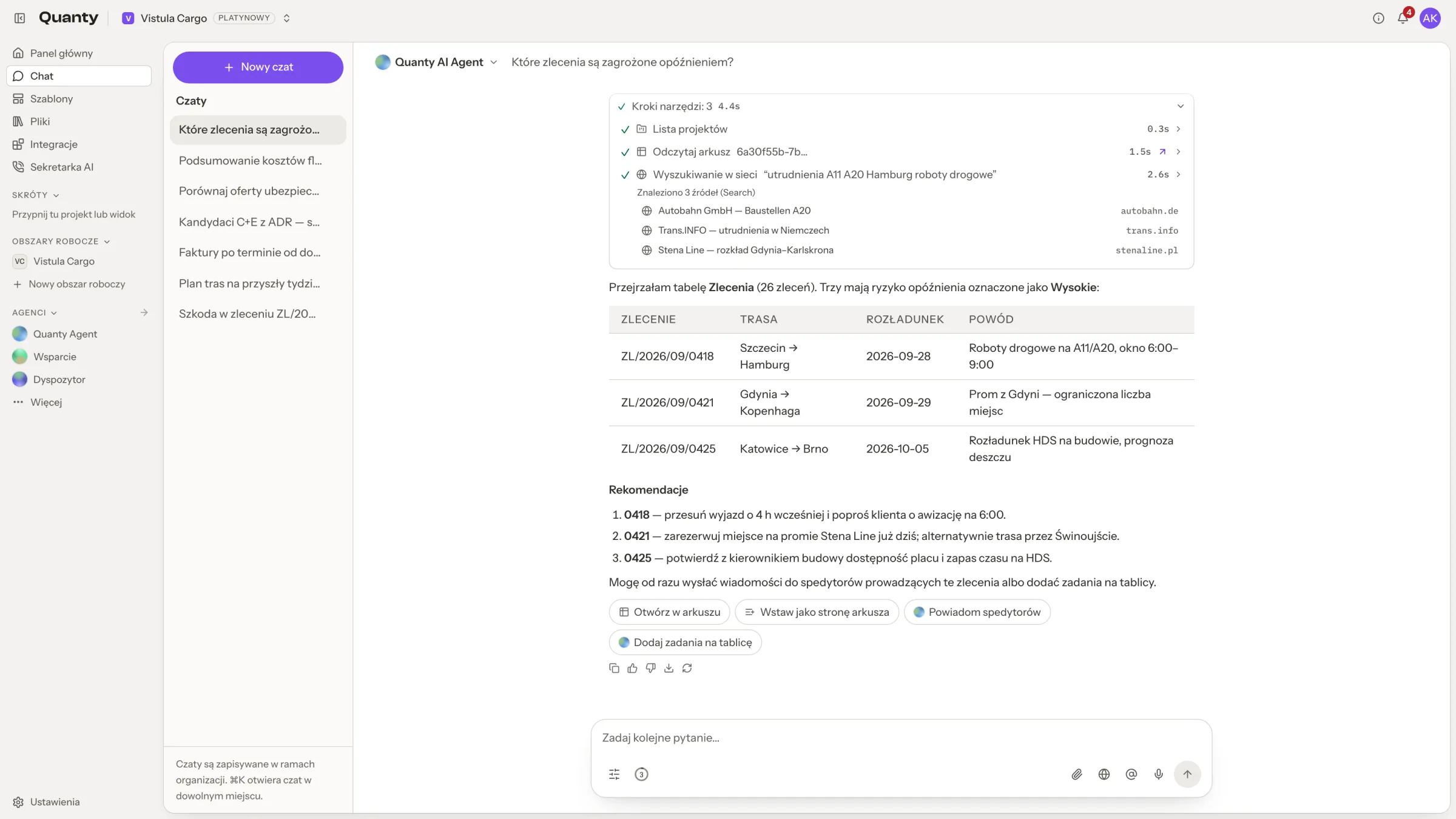
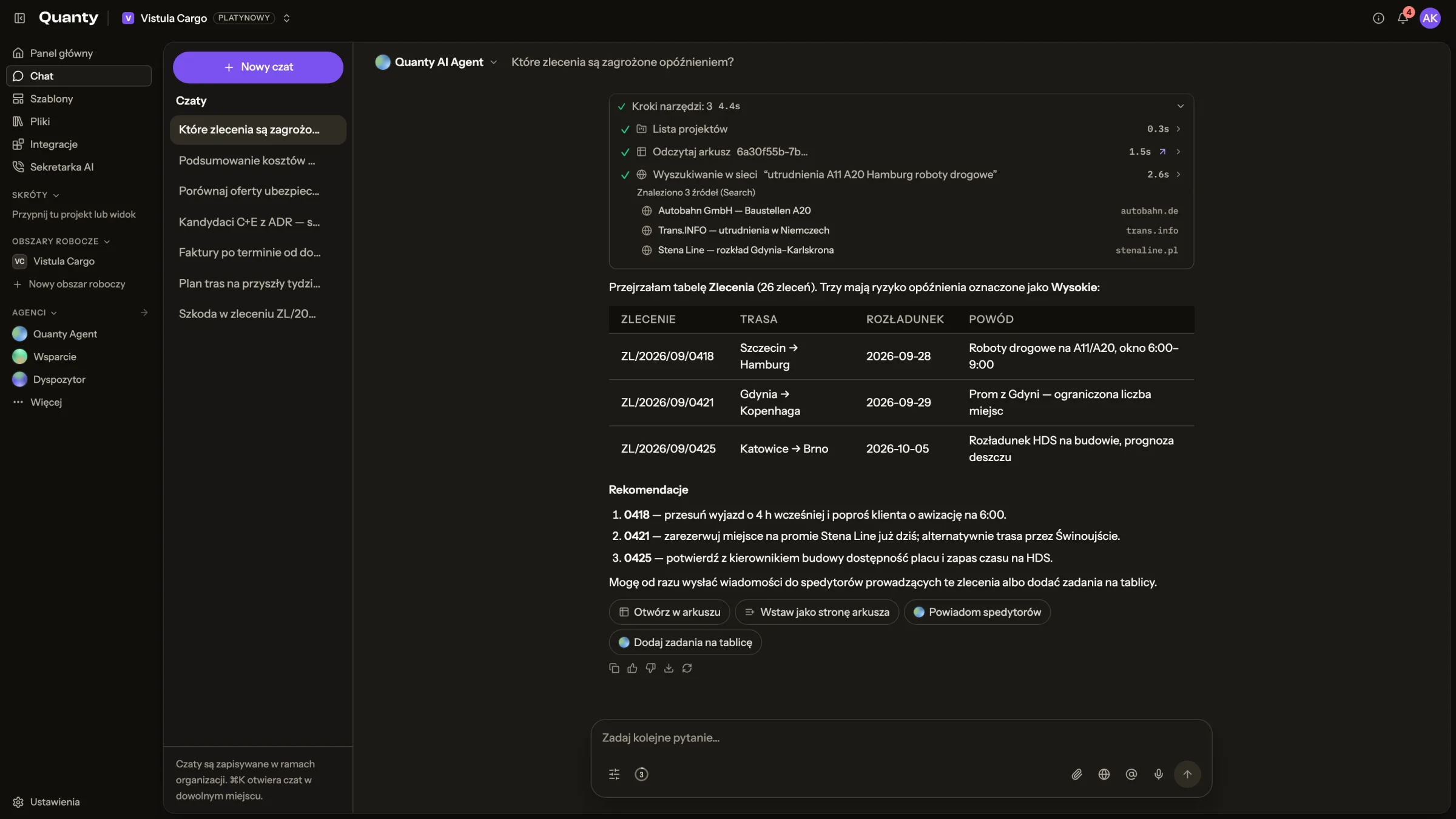
Opening the assistant
- Press Ctrl+K (⌘K on a Mac) anywhere: Chat opens on the AI conversation.
- Click the Chat button in the bottom-right corner and pick Quanty, or one of your agents, under AI at the top of the list. Every AI row carries an AI marker, so it cannot be confused with a colleague.
- Open Chat from the sidebar for longer sessions on the full page.
Next to a sheet, the panel docks on the right (drag its edge to resize it); you can expand it to the full page at any time. A thin line above the messages says You are talking to AI. Channels, direct messages and calls with your team are described in Chat.
Chat with your sheet
When a sheet is open, a context banner shows Working with your sheet: "The assistant sees this spreadsheet and can add rows, columns and edit cells from chat." Everything you can do manually, you can ask for:
- "Add a column that classifies each row by risk level"
- "Create a profit column: @Revenue minus @Costs, in EUR with 2 decimals, and put its sum in the formula row"
- "Delete the rows where Status is empty"
- "Run the AI columns on the new rows"
- "Summarize what's in this sheet"
Columns created from chat can reference sibling columns with @Column Name (values are injected per row instead of re-reading the documents), carry number formats (currency, decimal places, units), and the assistant can write formula-row aggregates like a SUM under any column. The assistant can also create internet-fed columns: ask for data your files can't contain ("Add a column with each company's current CEO from the web") and it sets the column's data source to the internet (or documents + internet), optionally restricted to given sites or a freshness window. While such cells process, the grid shows Searching the web…, and each value lists its web sources in the cell details. Each processed row runs one billed web search.
While the assistant works, live tool indicators narrate each step: Searching documents, Reading the spreadsheet, Adding rows, Updating cells, Adding a column, Running AI extraction, Adding a page, Attaching files, Reviewing cells and more. Results come with actions such as Open in sheet, Insert as sheet page, Open presentation, Open dashboard or View document.
The full list of operations the assistant can perform (reading, writing, processing, page management, presentations, dashboards and agent tasks) is documented in the Chat API.
Confirmations for destructive actions
Some operations are gated behind an in-chat confirmation card before they execute: deleting rows, deleting a column, deleting a page and running AI on all columns. The approval is bound to the exact action: if the request changes, it must be approved again.
Viewers are read-only in chat too
Chat respects roles: a user with the Viewer role can ask questions but the assistant will not perform write operations on their behalf.
Answers with citations
For questions over documents, the assistant retrieves from your organization's Files using hybrid search and returns citations: page references you can click to open the document with the source highlighted. The footer reminds you: "AI Agent can make mistakes. Please verify the information."
Skills with /
Type / in the message box to open the skills menu and pick a skill for this message. The Generate group holds Generate a dashboard, Generate slides, Generate a Word document, Generate an Excel workbook and Generate a PowerPoint file. Your organization's own skills follow below. Keep typing to narrow the list.
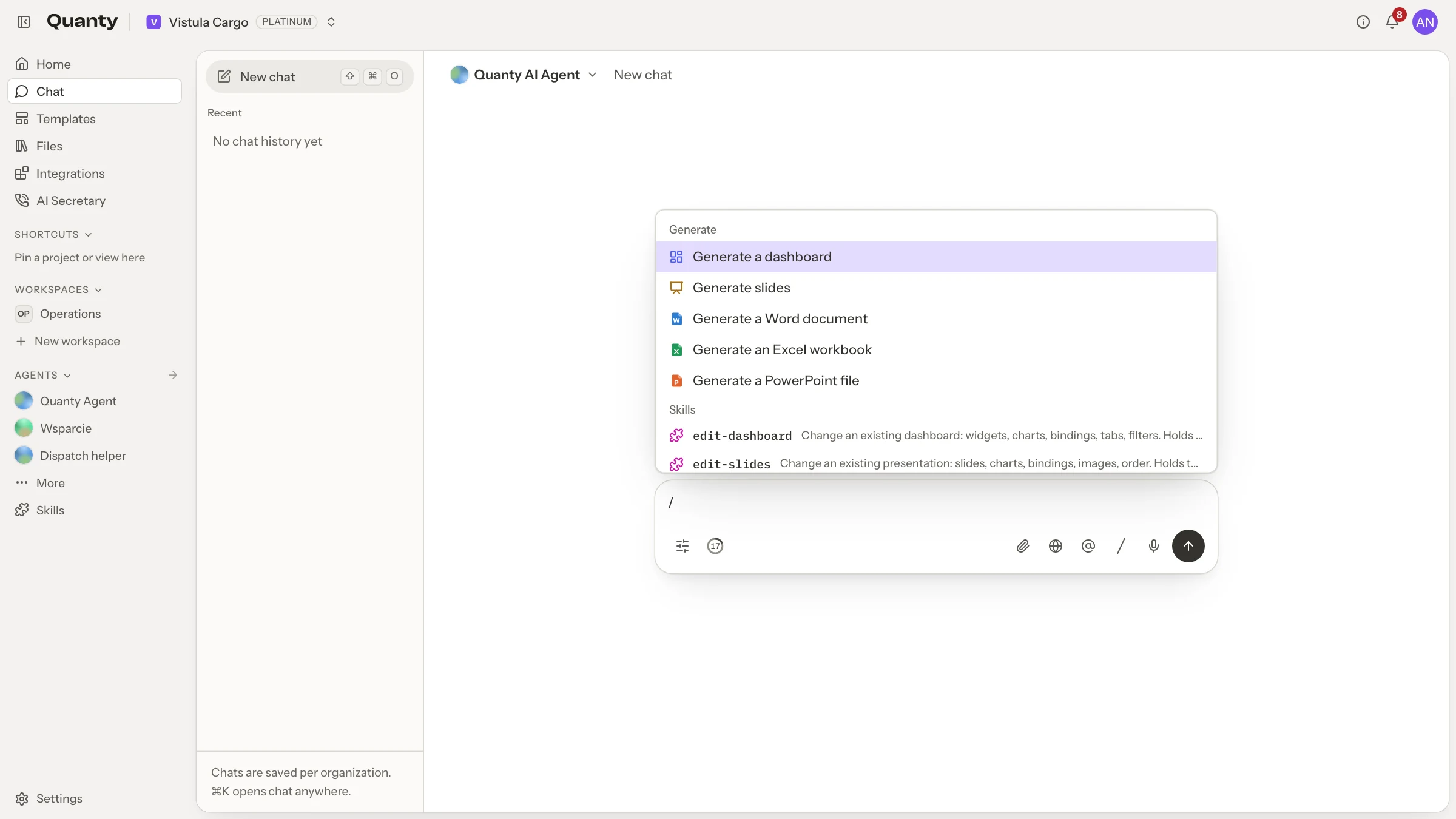
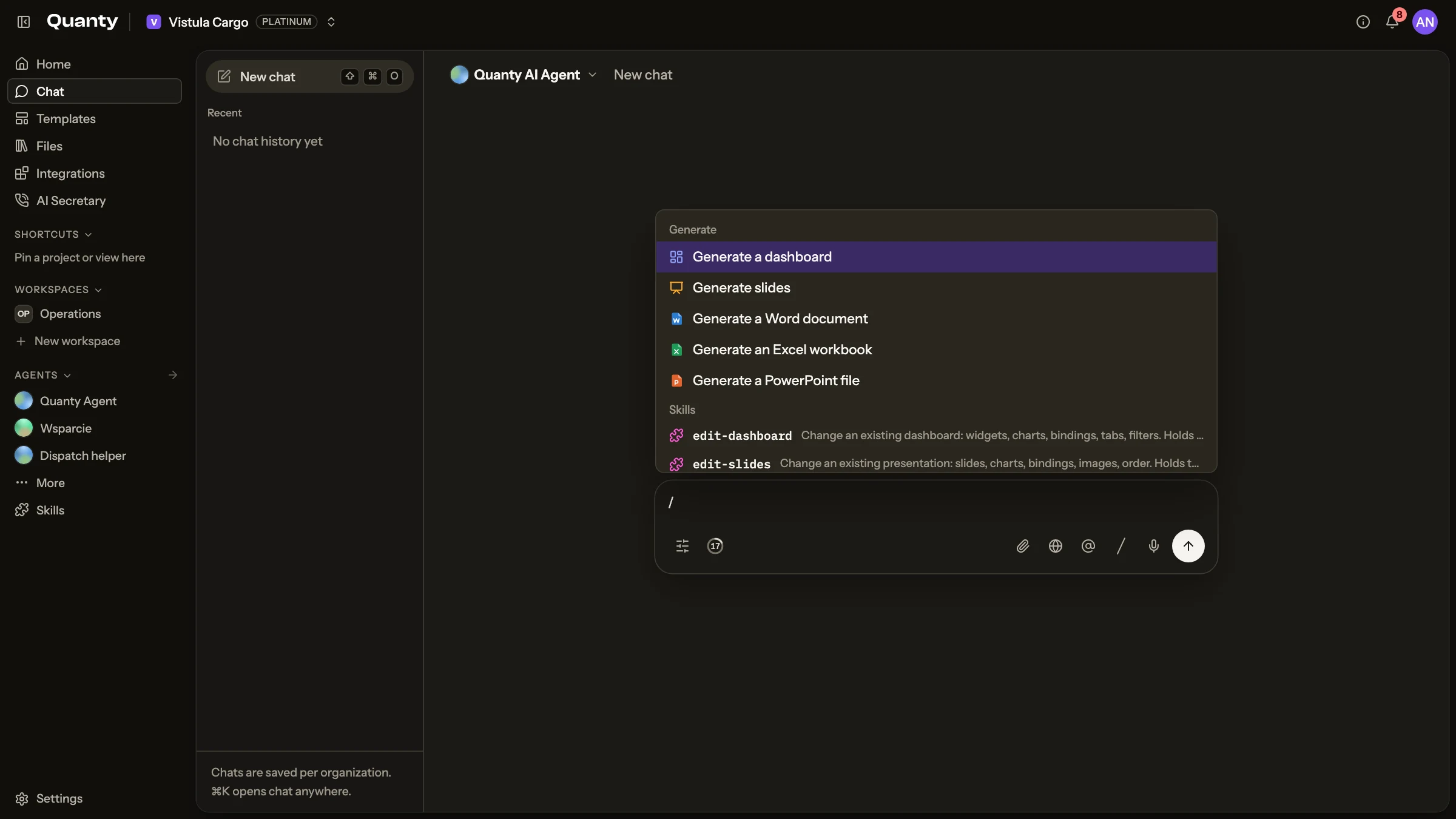
Picking a skill is optional: the assistant also loads one on its own when the task matches its description. A skill never gives the assistant more rights than it has without it. See Skills.
The checklist and step chips
For work with several steps the assistant writes its plan as a Checklist above the message box and ticks the items off as it goes. The header shows how far it is, for example "2 of 5 done", and you can hide the list or show it again.
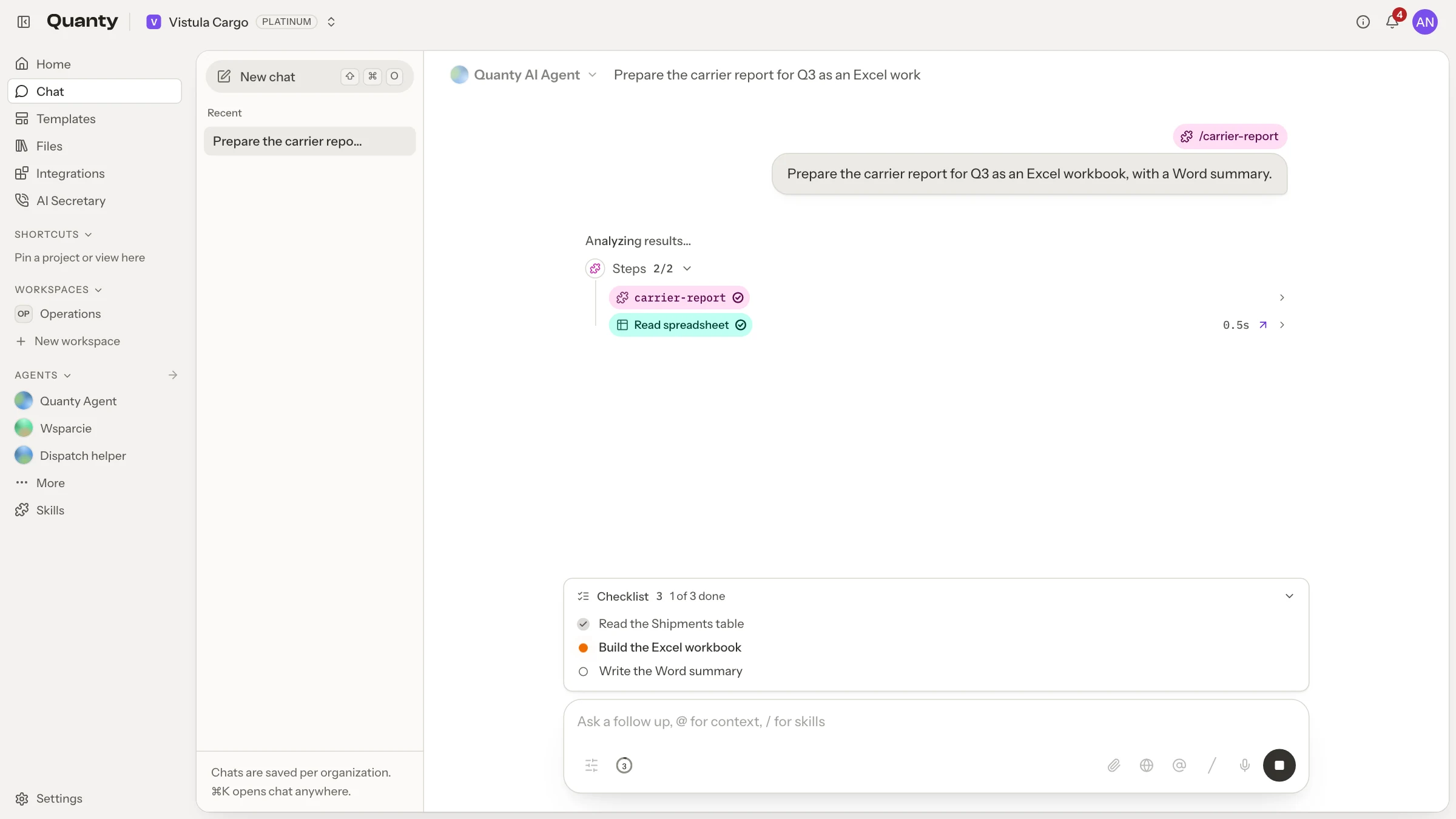
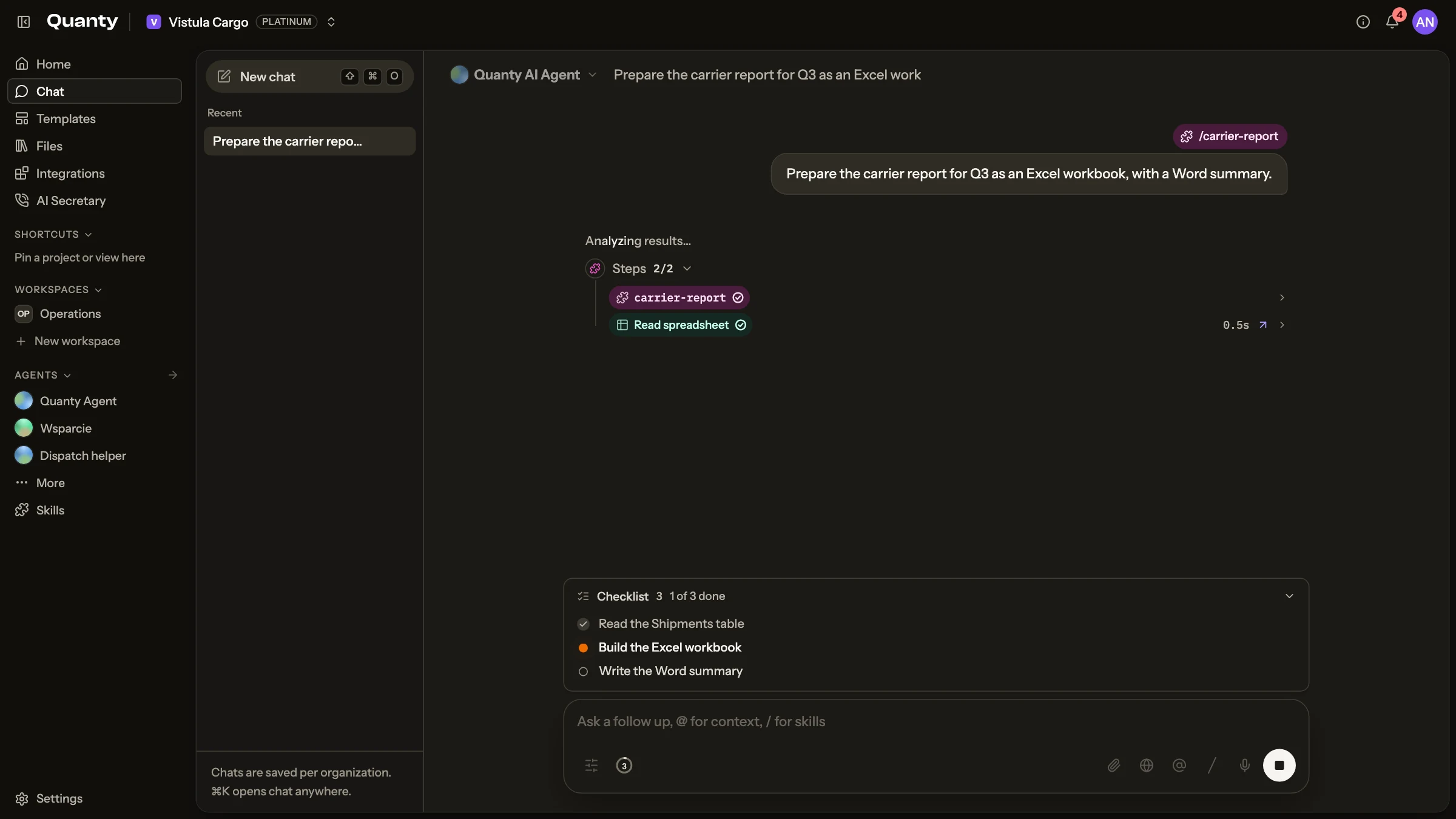
Each step appears in the conversation as a coloured chip. The colour tells the kind of step: Excel, Word, PowerPoint, PDF, table, dashboard, presentation, web, files, agent or skill. A running chip shows live progress, such as Reading the data, Planning, Building and Saving.
Creating files
Ask for a file and the assistant writes it:
| Format | Notes |
|---|---|
| Word (DOCX) | Reports, offers, letters, memos |
| Excel (XLSX) | With number formats, totals and charts |
| PowerPoint (PPTX) | A deck as a file |
| CSV, Markdown, text | Plain formats for other tools |
| PDF or PPTX of a presentation | An export of an existing Quanty presentation |
A finished file appears in the conversation as a card with Download and Open in Files.
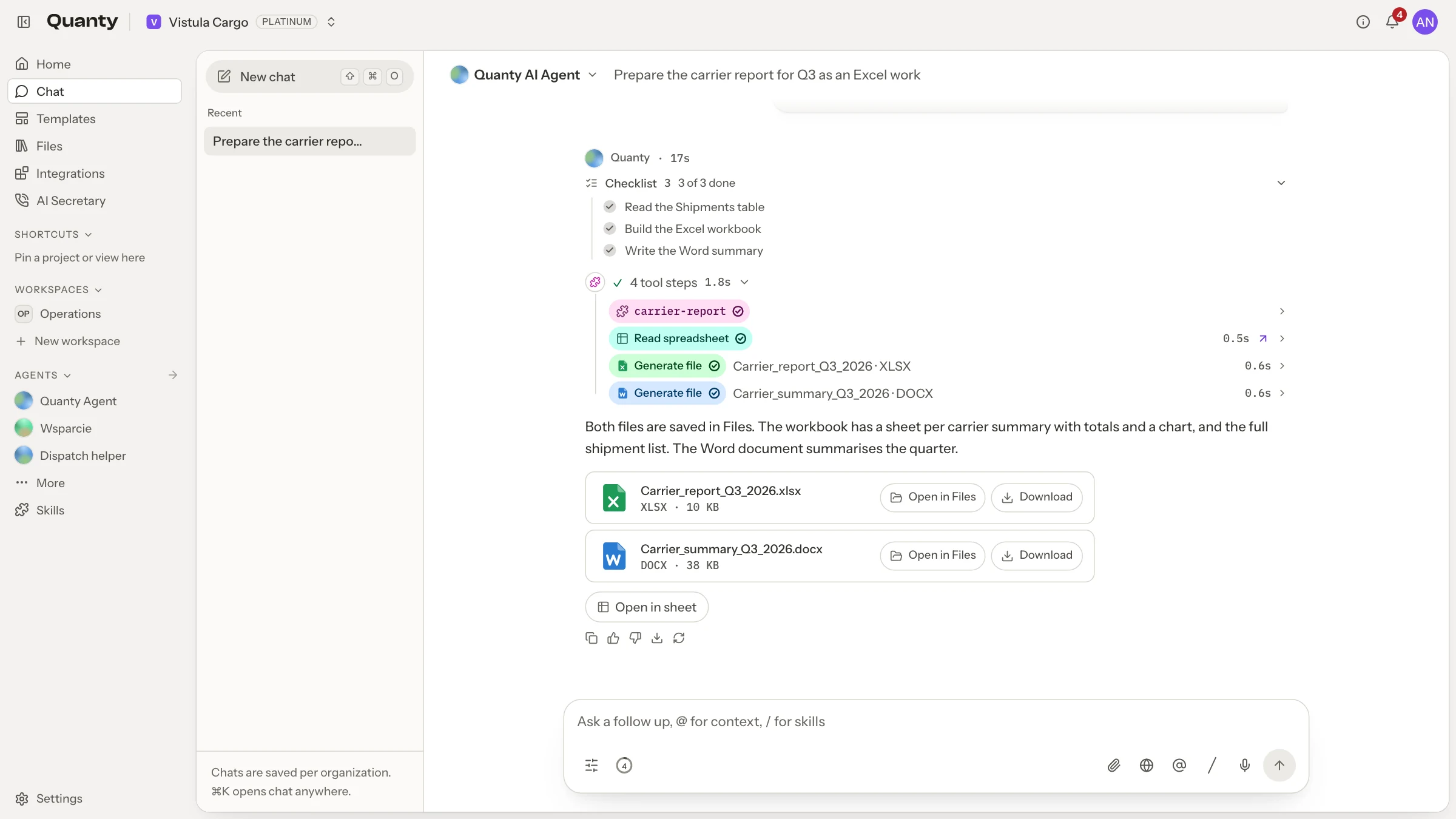
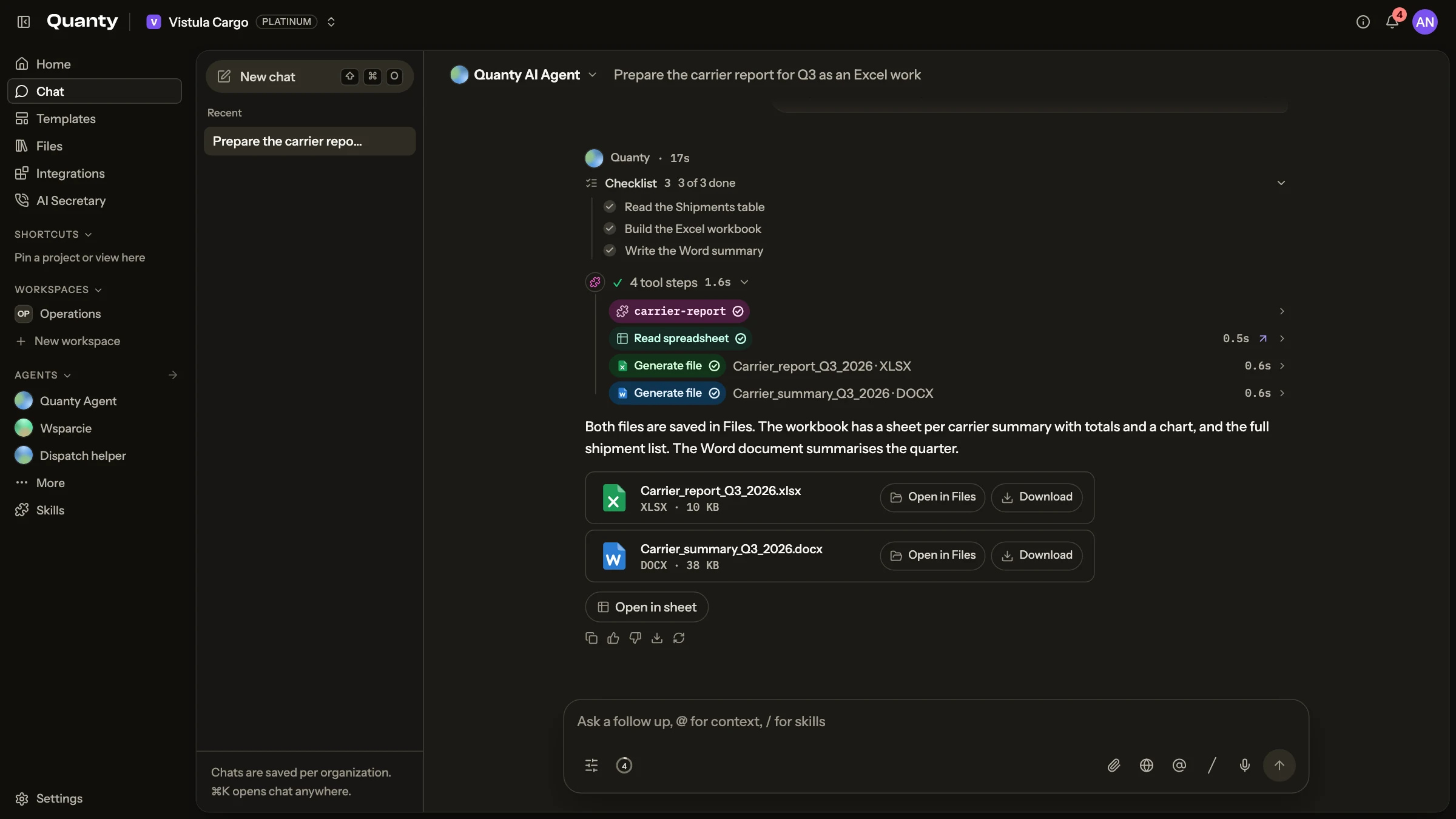
Every file is saved in Files. When the chat belongs to a project, the file goes to that project's Generated folder.
Editing the open dashboard or presentation
With a dashboard or a presentation open, chat works on exactly that one. The assistant can add, change, move and remove widgets and slides, bind them to data, set filters and change pictures:
- "Add a KPI with the number of late orders and put it first"
- "Turn the chart on slide 3 into stacked columns"
- "Filter the dashboard to carriers from Poland"
Deleting a dashboard or a presentation still asks for your approval.
Composer features
- Model picker: choose the model per conversation; models are listed with pricing tiers.
- Streamed thinking: the assistant's reasoning streams live before the answer, so long analyses are transparent.
- Voice input: press Record voice message, speak, then Stop recording. Your audio is transcribed ("Transcribing...") into the composer via speech-to-text.
- Quick actions: suggested pills above the composer for common operations on the current sheet.
- Empty conversations offer starters like "Summarize what's in this sheet", "Add a column that classifies each row" and "What looks inconsistent in this data?"
Agents in chat
The header's agent switcher selects who you are talking to: the built-in Quanty agent (the default) or any custom agent your team created. A custom agent brings its own instructions, model and starter prompts. See Agents.
Chat can also delegate hard, multi-step questions to an agent task with its own budget, for example "research this company and fill in the missing fields". The run appears in the Agent activity panel with live steps.
Conversations
- New chat starts fresh; History lists your past AI conversations with search. They live inside the AI conversation, not in Chat's list of channels and people.
- Conversations can be renamed, archived and deleted.
- Copy conversation and Export conversation are available from the more-options menu.
Related pages
- Chat: channels, direct messages, calls, and Ask AI inside team conversations.
- Agents: reusable personas and delegated tasks.
- Skills: instructions the assistant loads for a task.
- Write a report from chat: from a table to a Word report and an Excel workbook.