

TMS in chat
With the TMS add-on, the Quanty assistant in Chat knows your transport: orders, quotes, clients and carriers, the fleet and its sets, drivers and their papers, pallets, invoices, carrier costs and payments. Ask in your own words, in Polish, English or German, and it answers in the language you write in, with links to the records it names. The assistant uses credits like any chat (see Billing & credits).
Where to ask
- Chat at the foot of the TMS rail opens the Chat panel next to the page you are on.
- The ask box on My work sends your question straight into the Chat panel.
- Search (Cmd+K or Ctrl+K), last row, Ask Quanty.
The assistant sees which TMS page you are on and the record you have open (an order, a contractor, a vehicle, a driver, a cost, a pallet entry, an issue), so "remind the carrier about the CMR for this one" is enough on an order card.
What it can find and report
- Orders: by number, client, vehicle, driver, dates, status, owner, ADR, missing or complete documents, invoiced or not, and orders that came from your existing TMS. One order in full: stops, goods, documents, settlement, the owner, the expected arrival, remarks and its history.
- Who drove: which set and where a truck or driver was at a given time and place.
- Any other record: contractors, invoices, costs, quotes, issues, set proposals, pallet entries, who holds a piece of equipment, and the differences with your existing TMS.
- Reports: an overview of where things stand, your own My work, deadlines of vehicles, policies and people's papers in one list, pallet balances and the receipts to chase, a person's leave for the year, people or trailers in two sets at once, which orders are ready to invoice and why the rest wait, what blocks the month close, a late invoice's interest (the note itself is printed by a person), fleet costs per vehicle or category, and the service reports, each with a link to its page and its Excel.
Changes: three kinds of step
What the assistant may do is decided by Quanty for each kind of change, never by the model.
| Kind | What happens | Examples |
|---|---|---|
| At once | Drafts and steps nobody outside sees; each one is in the record's history. | Creating, updating or copying an order (to another date, keeping the local hour); an invoice draft from orders; notes; a reminder draft; adding an absence or a fleet cost; adding a driver or a driver's document; a deadline; handing an issue to someone; a client's payment promise; fetching from your existing TMS now (admins). |
| Approval card first | The assistant shows a card with what will change and waits. Nothing happens until you click Yes, do it. | Confirming, correcting, cancelling or assigning an order; changing its status; recording a payment; sending a reminder; matching a cost to an order; switching a set; renewing a policy; changing an absence; adding a pallet entry or reminding a driver about a receipt; showing a tracking link; sending a carrier cost back to "To explain" or marking it disputed; splitting a collective carrier invoice over its orders; changing a contractor's payment days or contact details; deciding a difference with your existing TMS. |
| A person's step | The assistant says where it is done in the app and links there. | Issuing, correcting or cancelling an invoice; KSeF; approving, rejecting or paying costs; payment batches; credit limits, permissions and blocks; deletes; settings; switching the connection to your existing TMS on or off; factoring; e-mailing an invoice; sending the carrier order. |
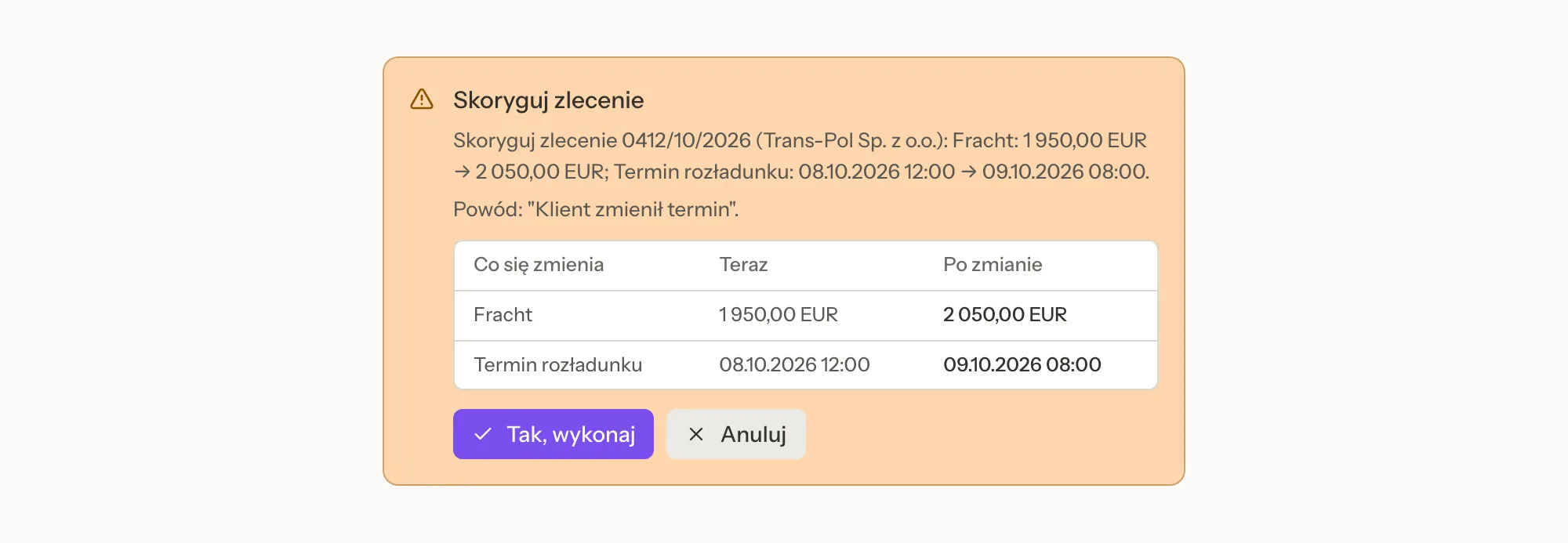
The approval card
- It states the facts as Quanty resolved them: records by number, plate or name, never by an internal id, and before and after for every change.
- One card can cover up to 20 records, for example reminders for three orders with one approval. Records that were left out are listed with the reason (not found, several match, from your existing TMS, sample data, listed twice, a person's step).
- Confirming an order shows what it does to the client's credit line. A blocked client or carrier is refused before any card, with a link to the contractor.
- If the record changed after the card was shown, you get a fresh card instead of an old step being run. A double click on Yes, do it runs the step once.
What keeps it safe
- Viewers only read. Every change needs the TMS add-on, a member or admin role and an organization that is not read-only.
- Messages go only to stored contacts. An address given in the chat cannot be used by the chat for 24 hours, and archived contacts get nothing.
- Nothing is sent about records from your existing TMS while it runs in parallel, nor about sample data. The card lists them as left out.
- KSeF, bank files, payment batches, cost approval and invoices are never done from chat. The assistant says where to do them.
- Record text is data, not instructions. Remarks on an order cannot steer the assistant.
- It never asks for, keeps or repeats API keys or passwords.
- Every change made through chat is marked as such in the record's history.
The assistant proposes, you decide
Anything with consequences outside Quanty, or for money, waits for your approval card or stays in your hands in the app. The assistant drafts and explains; a person confirms.
Related pages
- AI assistant: how the assistant works in Chat in general.
- TMS overview: My work and its ask box.
- TMS next to your existing system: records that come from another system.