

Skills
A skill is a short instruction file for one kind of job: how to build the monthly report, how to check an invoice, which steps to follow when a client asks for an offer. You write it once, and the assistant loads it whenever a task calls for it. An agent says who the assistant is; a skill says how a particular job is done.
How a skill is used
The assistant always sees the name and the description of every active skill, and nothing else. When a request matches a description, it loads the full instructions and follows them. Supporting files are read only when the instructions point to them.
This is why the description matters most: it decides whether the skill is ever used. Say what the skill does and when to use it, in the words your team would actually type.
You can also pick a skill yourself by typing / in chat. See Using skills in chat.
The Skills page
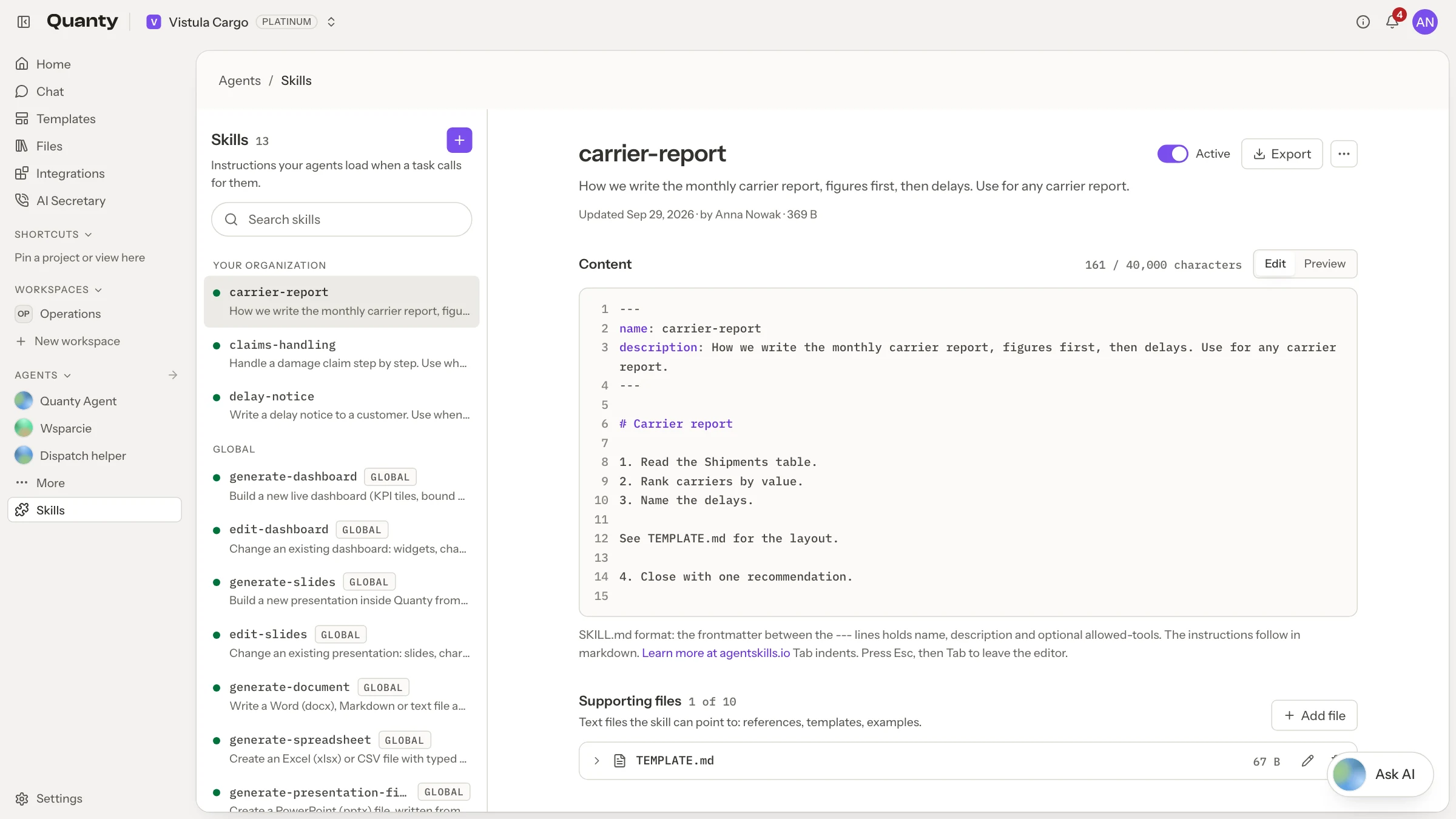
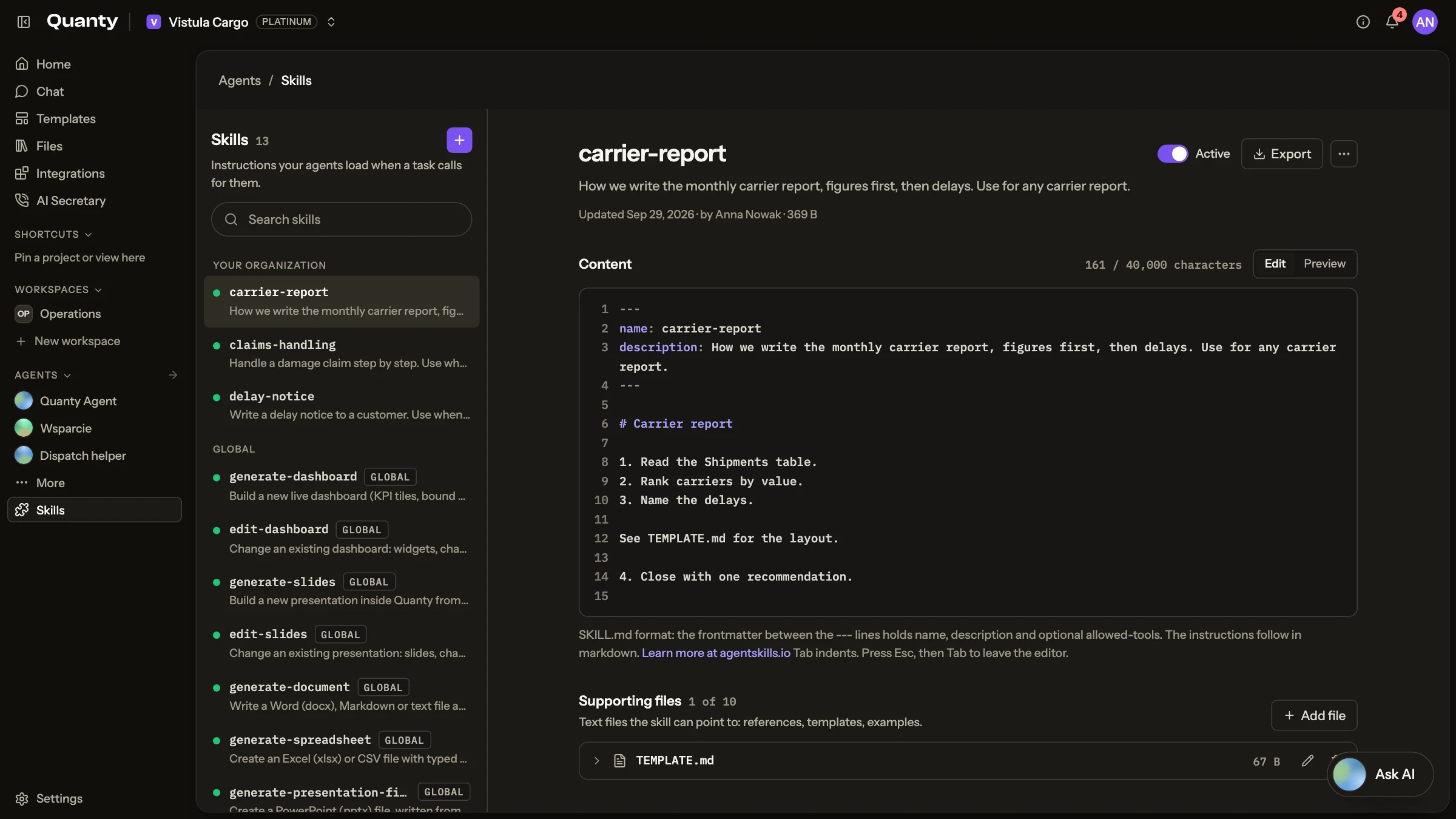
Open Agents in the sidebar and choose Skills. The list has two groups, Your organization and Global, with a search box on top. From here you can:
- create a skill with New skill (Blank skill, or Import SKILL.md or .zip),
- edit a skill in the editor, switching between Source and Preview,
- turn a skill on or off with the Active switch; an inactive skill stays on the list but is not offered to the assistant,
- add Supporting files,
- Export, Duplicate or Delete a skill.
Viewers can read skills. Members and admins create and edit them.
Writing a SKILL.md
A skill is a text file named SKILL.md. It starts with a header between two lines of three hyphens, followed by the instructions in Markdown.
| Field | Required | What it is |
|---|---|---|
name | yes | Lowercase letters, digits and single hyphens, for example monthly-report. Unique in your organization. |
description | yes | What the skill does and when to use it. |
allowed-tools | no | A list of tools. While the skill is in use, the assistant may use only these. |
A complete, short example:
---
name: carrier-scorecard
description: Build the monthly carrier scorecard from the Shipments table. Use when someone asks for a carrier ranking, a delivery performance report or the monthly scorecard.
allowed-tools:
  - read_spreadsheet
  - search_library
---

# Carrier scorecard

## When to use

Requests for a ranking of carriers, on-time delivery or the monthly scorecard.
Not for a single shipment: answer those directly.

## Steps

1. Read the Shipments table for the month the user asked about.
2. For each carrier count the shipments, the late ones and the damage claims.
3. Rank carriers by the share of on-time deliveries, best first.
4. For the wording of the summary read templates/summary.md.

## Rules

- A shipment is late when Delivered is after Promised.
- Leave out carriers with fewer than 5 shipments and say that you did.
- Always state the month and the number of shipments the ranking is based on.The example sets allowed-tools because a scorecard only reads. Most skills do not need it: leave the field out and the assistant works with everything it normally has.
A few habits make a skill work well:
- Start the description with the verb and the object, then the trigger: "Use when...".
- Number the steps in the order they are done.
- Write rules with their numbers ("fewer than 5 shipments"), not "be careful".
- Put company facts in: names of tables and columns, thresholds, the wording you use.
- Keep secrets out. Everyone in the organization can read a skill.
Supporting files
A skill can carry up to 10 supporting files: text files with references, templates or examples. Add them with Add file in the Supporting files section, give each a path such as references/pricing.md, and type the content or use Load from a file.
Point to each file from the instructions by its exact path and say when to read it, as step 4 of the example does. A file the instructions never mention is never read.
Import and export
Skills use the open Agent Skills format (agentskills.io), so a skill written in Quanty works in other tools that read the format, and skills from elsewhere can be brought in.
- Import: choose Import SKILL.md or .zip, or drop the file onto the page. One file, up to 2 MB. If something in the file could not be kept, the page shows it under Imported with notes.
- Export: downloads the skill with its supporting files as a .zip. Export takes the saved version, without unsaved changes.
Global skills
Global skills come with Quanty. They are read-only; Duplicate to edit makes a copy that belongs to your organization and can be changed.
| Skill | What it is for |
|---|---|
generate-dashboard | Building a dashboard from a table |
edit-dashboard | Changing an existing dashboard |
generate-slides | Building a presentation in Quanty |
edit-slides | Changing the slides of an existing presentation |
generate-document | Writing a Word document |
generate-spreadsheet | Building an Excel workbook |
generate-presentation-file | Building a PowerPoint file |
deep-research | Researching a question in depth |
creating-skills | Writing and improving skills |
Skills per agent
Each agent has a Skills card in its form with two choices:
- All active skills: every active skill, including ones added later.
- Selected skills: only the skills you pick.
With Selected skills and nothing picked, the agent works without skills. Manage skills takes you from the agent to the Skills page.
Using skills in chat
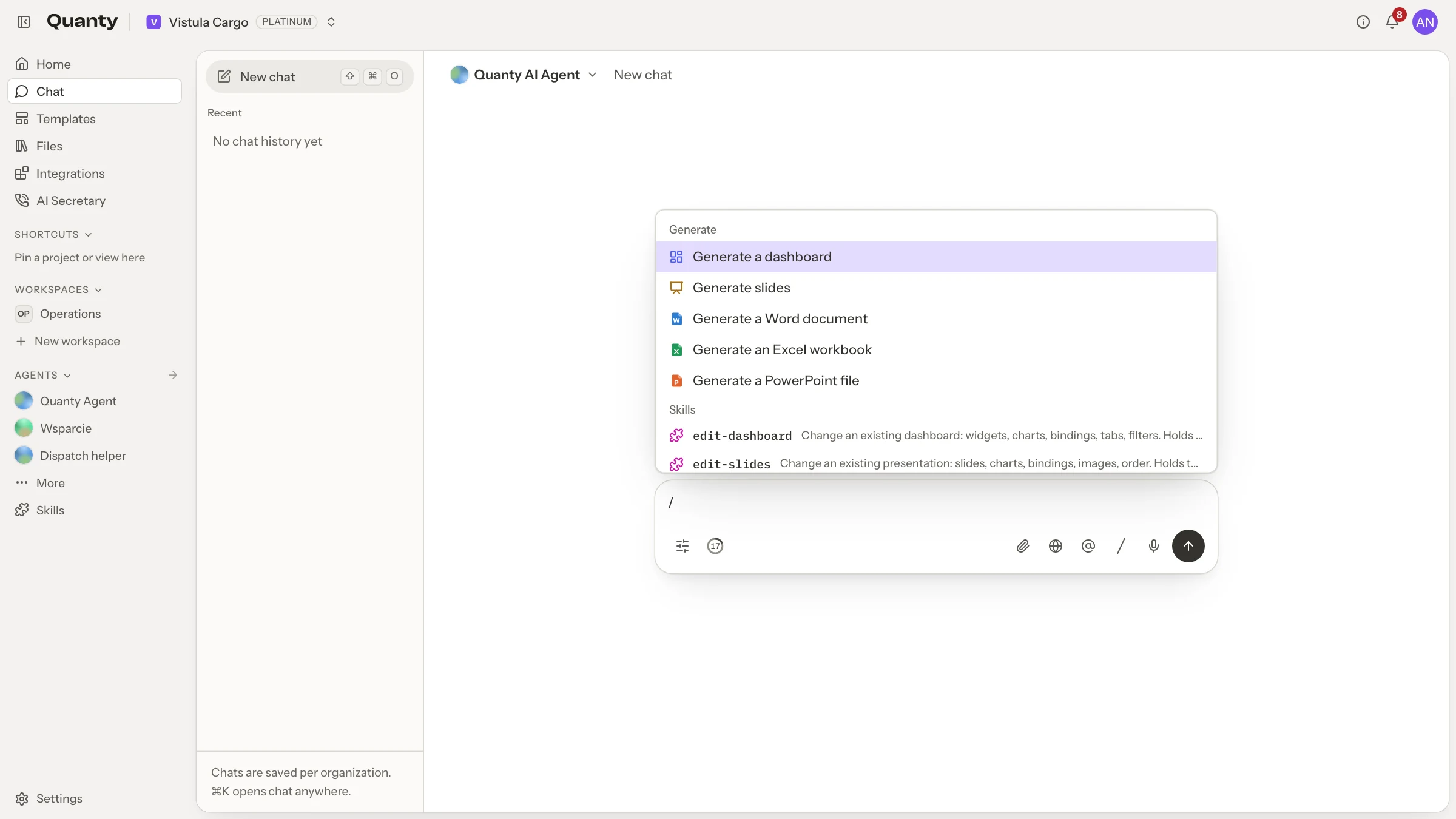
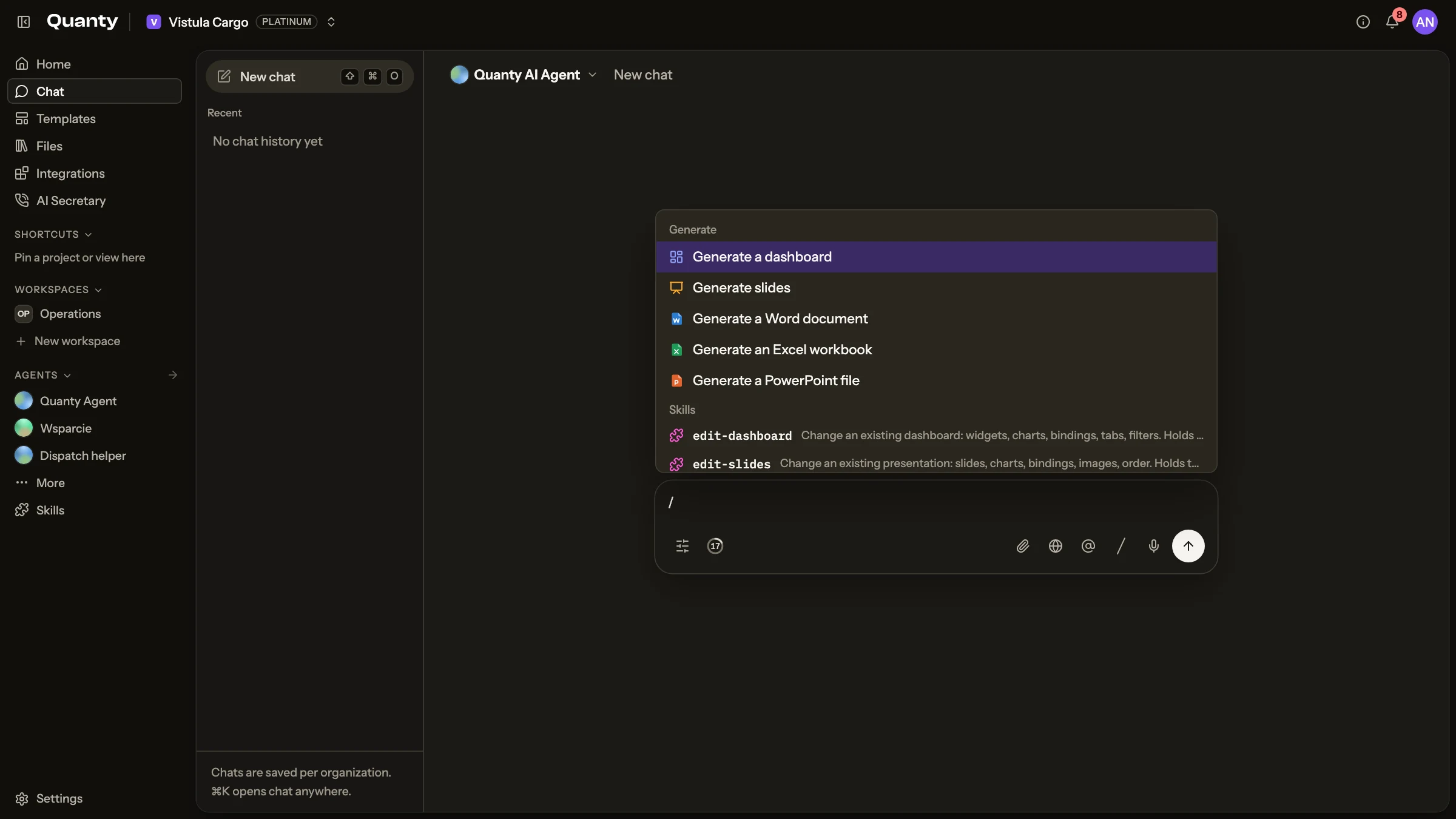
Type / in the message box to open the skills menu. The Generate group comes first:
- Generate a dashboard
- Generate slides
- Generate a Word document
- Generate an Excel workbook
- Generate a PowerPoint file
Your organization's skills follow under Skills. Keep typing to narrow the list, pick a skill, then write your request as usual. The skill applies to this one message.
You do not have to pick a skill. The assistant loads one on its own when the task matches its description.
Safety
A skill never adds rights
A skill changes how the assistant works, never what it is allowed to do. Approvals, roles and plan limits apply as always: a Viewer stays read-only, and an action that needs confirmation still asks for it.
allowed-tools works in one direction only. It narrows what the assistant may use for that message, and it cannot grant a tool the assistant would not otherwise have.
Limits
- Up to 10 supporting files per skill, text only.
- Import takes one file, up to 2 MB.
- Global skills cannot be edited, only duplicated.
- Viewers can read skills but not change them.
Related pages
- Agents: who the assistant is, and which skills each agent uses.
- Chat: the
/menu, the checklist and files created in chat. - Write a report from chat: a step-by-step recipe that uses skills.