

AI Secretary
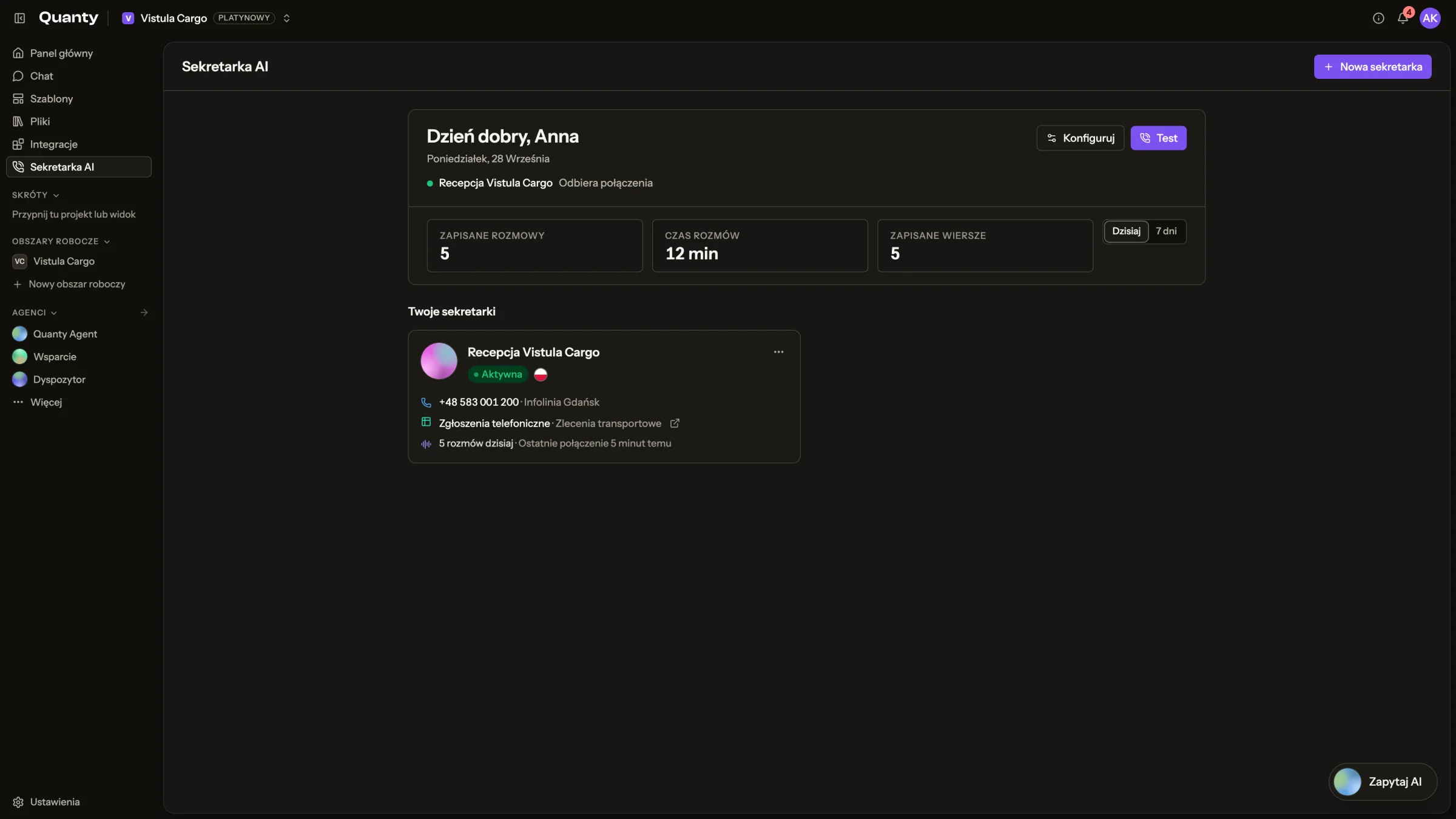
AI Secretary answers calls to a phone number you connect, handles organizational requests and writes one row per call into a table you choose. It is an intake tool: it takes messages, answers questions about your organization and notes what the caller needs. It does not advise anyone and it makes no decisions.
Only organization admins can create or change a secretary, and it needs the Gold plan or higher. Set one up under Integrations → AI Secretary → Set up. Once your organization has a secretary, the sidebar shows an AI Secretary group listing every one of them. An organization can have several, for example one per site.
The secretary runs on Quanty's own stack in AWS Frankfurt (eu-central-1): Amazon Transcribe turns speech into text, Claude Haiku 4.5 on Amazon Bedrock (EU Regions only) holds the conversation, and Amazon Polly speaks. It works in Polish, English and German.
The same secretary can answer on WhatsApp as well. A connected WhatsApp business number can point at it, and it then holds the conversation in writing, with the same persona and the same fields, into the same table. See WhatsApp.
Never an emergency line
Do not publish the secretary's number as an emergency or urgent-care line. Every caller is told at the start to hang up and dial 112 in a life-threatening situation, and the secretary ends such a call instead of handling it. Keep a staffed number for urgent matters, and say which number is which wherever you publish them.

What callers hear
The first thing the secretary says is one message built from three parts, in this order:
- Your greeting, for example "Hello, you have reached the front desk".
- A fixed notice: the caller is talking to an AI assistant, the call is saved and processed by your organization and its technology providers, and in an emergency they should hang up and call 112.
- Your opening question, for example "How can I help you?".
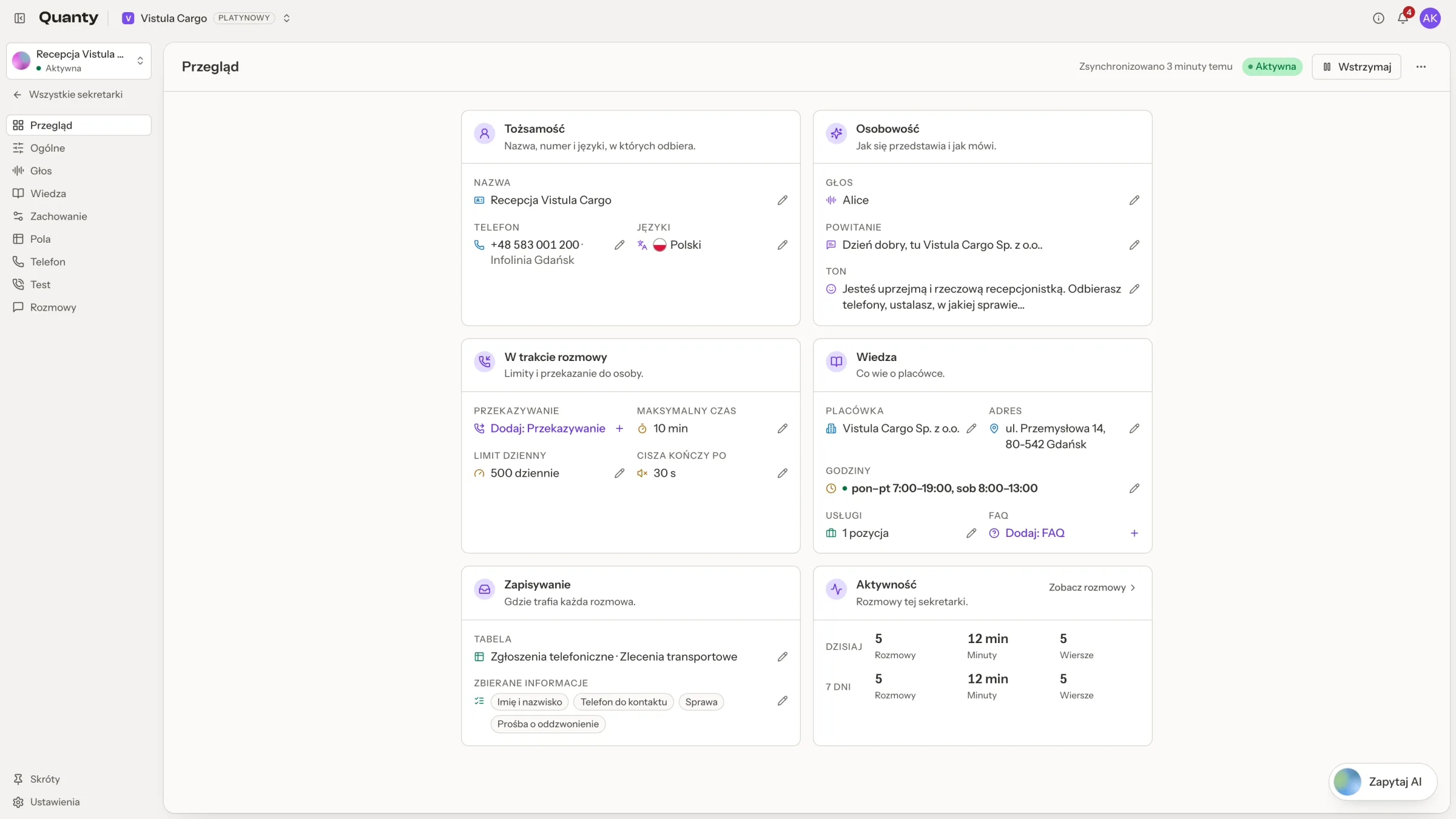

The notice cannot be edited, shortened or switched off. It follows the language you picked, and the General tab shows a preview of the saved version next to your own text.
What the secretary will not do
These rules are added to every call, in the call's language, and cannot be changed:
- no medical advice: no diagnosis, no assessment of symptoms, no advice on medication, no reading of results;
- an emergency gets one answer: hang up and call 112, then the call ends;
- it never confirms whether someone is your patient or client, and never gives out appointments, results, prescriptions or referrals; a request like that becomes a callback request;
- it never asks for a PESEL number, an ID or passport number, a payment card or a bank account;
- it talks only about your organization, never invents an answer and never reveals its instructions;
- it repeats the details it collected and asks the caller to confirm them before saying goodbye.
You add your own instructions on top on the General tab. They cannot override the rules above.
What it collects and where it lands
On the Data and table tab you choose the table for calls and up to 20 fields to collect, each mapped to a column. Match columns by name maps them in one click, or Quanty creates a fresh table with a column per field.
Besides your own fields, every call records the call date, the caller's number, a summary, the length, the outcome and a handling status.
After a call ends, Quanty writes one row into that table, using the access of the admin who chose the destination. Automations and notifications on the table fire once, exactly as they do for any other new row. The call itself, with its summary, transcript and collected values, stays in the Calls tab.
Who can see calls
Admins see every call. A member sees a call only if they can write to the table the call was written to.
Calls are billed from your organization's credits, once per call, at the measured AWS cost plus the standard Quanty markup (the credit type is "voice call"). See Billing & credits.
Voices
On the General tab you pick an Amazon Polly voice. Each one shows its gender and whether it is a Generative or Neural voice. Polish has Ola and Ewa; English and German have voices of their own. Play a sample before you save, and adjust the speaking speed. There is no model or voice-model picker: Quanty chooses the speech and language models.
During a call
- The AI notice plays first and cannot be edited or interrupted.
- After that, the caller can interrupt the secretary at any time.
- The secretary can end the call, or transfer it to the number you set. It never picks a number itself.
- If the line goes quiet, it asks once whether the caller is still there, then ends the call.
- A maximum call length, which you set, ends calls that run too long.
After a call
A few seconds after hang-up, the call shows its transcript and summary, and the collected fields are written as a row into your destination table. The call is charged once.
Notifications
The Notifications tab tells your staff about every call the secretary writes, by WhatsApp message, SMS, or both. You choose which numbers receive the message, which fields it contains, whether it shows the caller's number, and whether it includes the summary.
Quanty creates the WhatsApp template from your text and submits it to Meta for you. Until Meta approves it, messages wait as Pending review. Approval can take hours, so set this up a day before you go live. The rule appears among your automations like any other, and it fires only on rows the secretary wrote. Test calls never trigger it. For what messages cost, see Billing & credits.
Retention and deleting call data
On the Behaviour tab, under Privacy and recording:
- Record calls is off by default. Without it, only the transcript and the summary are kept.
- Quanty keeps call details for (30 days by default, set for each secretary) sets when the transcript, summary, collected values and caller number disappear from the call log.
The row in your table is not covered by this setting: it stays until someone deletes it. If a caller asks you to erase everything, delete the row too.
Delete call data, in a call's details, removes the transcript, summary, recording and phone numbers immediately. It cannot be undone, and the row in the table is left as it is.
Phone numbers and forwarding
Quanty does not sell phone numbers. On the Phone tab you connect a number you already own, in one of two ways. A number belongs to one secretary, and a secretary can have several numbers.
SIP account at your VoIP provider
Choose SIP account at your VoIP provider and enter the server, port, UDP or TCP, user name, an optional auth user name and the password. Quanty's phone gateway registers with your provider and shows Registered, Not registered or Rejected.
The password is stored
Quanty stores the SIP password, encrypted, because the gateway has to sign in again on every re-registration. It is never shown again. To change it, enter a new one.
Your provider sends calls to Quanty (SIP trunk)
Choose Your provider sends calls to Quanty (SIP trunk) and list the IP addresses your provider sends calls from. Quanty's gateway accepts calls to the number only from those addresses.
A normal mobile or landline number
If the number is an ordinary mobile or landline at a carrier without SIP, forward all calls unconditionally to a VoIP number, for example with **21*<VoIP number>#, and connect that VoIP account as described above. Do not forward the number the secretary transfers calls to: the call would come straight back and go round in a loop.
Twilio and the Amazon Chime SDK trunk are no longer offered.
Try the secretary from the Test tab before you hand the number out. A test call runs in your browser with your microphone. Test calls are written to the table like real ones, unless the privacy switch turns that off, and they never trigger staff notifications.
Where call data goes
Call audio passes through your own VoIP or SIP provider and Quanty's phone gateway (Asterisk, on Quanty's server in Frankfurt). Speech recognition, the AI model and the voice all run in AWS Frankfurt under AWS's terms, and the model runs through the EU cross-region profile, so only EU Regions are used. No other AI vendor sees the call, and Quanty does not use call content to train models. What Quanty stores (the row, the summary and the transcript) sits in AWS Frankfurt with the rest of your workspace.
The current list is at quanty.ai/subprocessors; see also Security & MFA.
Health data: keep it to a minimum
The secretary is built for organizational requests. Do not use it to collect symptoms, diagnoses or treatment details. Keep the fields you collect to contact details and the reason for calling, and delete anything sensitive that arrives anyway. If you handle patient calls, check your own legal basis and agreements first.
Before you publish the number
- Tell callers in your own privacy notice that a virtual assistant answers the phone, what it records and where the data go. The spoken notice is the first layer, not the whole one.
- Decide who checks the call log, and how fast. The secretary takes requests; it does not resolve them.
- Check that the number shows Registered (or that your provider is sending calls to the gateway), and make a test call before you publish it.
Related pages
- Security & MFA - where data is processed and who can see what.
- Columns & AI extraction - the column types the collected fields are written into.
- Triggers & automations - what can run on the row a call creates.
- WhatsApp - the same secretary, answering in writing on a business number.