

TMS orders and quotes
An order in TMS runs from the client's request to the money on your account: Quotes and Orders under Sales, then Planner, Tracking and Documents under Operations, then Invoices under Billing. This page covers everything up to the invoice. Invoices and carrier costs are on TMS invoices, costs and payments.
Quotes
Sales, Quotes holds the prices you give before a client says yes. New quote takes the client, the route, the cargo and the price, and shows the estimated cost and margin. The tabs follow the quote: To send, Sent, Won, Lost, Expired and All.
- Send marks the quote as sent and shows the e-mail text in the language you pick, ready to copy. Quanty does not send that e-mail: you send it from your own mailbox, so the client answers you directly.
- Price suggestion: Calculate price checks the distance, your own cost per kilometre and what the lane paid before, and proposes a Low, Middle and High price; the middle one follows what clients paid on the lane and never goes under your cost or your minimum rate. Use puts one into the quote; the decision is yours.
- Turn into an order makes an order from a won quote in one click.
- A quote past its valid-until date becomes expired by itself (an automatic action in TMS settings).
- Lanes shows what your orders really paid on each lane, clients and carriers, per kilometre. Look there when you price the next request.
Creating an order
New order on the Orders page has a menu with four ways in:
- Fill in by hand: the order form.
- From a file (AI): drop the client's order (PDF, Word, an e-mail or a photo, up to 25 MB) or paste its text, and Quanty fills a draft. Every field it read shows how sure it is ("Read with confidence", "Probably right, check it", "Unsure, check it"), and a client or place it recognised is picked for you. You check the draft and save it. This needs the AI switch in TMS settings and uses credits.
- Import from a file (Excel, CSV): many orders at once, one order per row. Quanty matches clients, vehicles and drivers to what you already have, and shows a preview with Ready to import, Already in Quanty (skipped, nothing is duplicated) and To check (missing data, not imported). Nothing is saved until you confirm.
- From a template: a saved order you repeat. Save as template on any order makes one, and a template with a schedule creates draft orders ahead of their day.
The order form
The form has the sections Client, Route, Cargo and requirements, Price and Execution, with a summary on the right: the route, the freight, its value in PLN, the carrier cost and the margin. Checks below the summary says whether the order is Ready to confirm, what Must be fixed before confirming and what is Worth a look.
- Client: the client (search by name, alias or NIP), its contact person, the client's reference, the branch, the owner and the date received. The client's credit line shows under the name: the available limit, an exceeded limit or a limit renewal that has passed.
- Route: loading and unloading stops from your saved places or a typed address, each with a date, a time window, a reference, a ramp and a comment. Calculate route fills in the kilometres, the driving time and an estimate of road tolls. Each stop also takes its details: a contact and phone, goods ready from, the planned stop time, and the pre-advice (not needed, required, or booked with its number). A missing pre-advice is a warning and an issue, never a block.
- Cargo and requirements: goods lines with quantity, unit, weight and LDM; sizes from which CBM and LDM are worked out; stackable, value, packed in, full load; the temperature range and setpoint per line (the order's temperature follows its lines); several ADR lines with the UN number, class and packing group; the trailer type and requirements such as a lift, straps or customs clearance.
- Price: see below.
- Execution: your own fleet (tractor, trailer, driver and a second driver; the current set is filled in for you) or a carrier (the carrier, its cost, plate, driver, reference and the date documents are promised by). If the tractor or driver is already busy in that period, with another order, a service, an absence or papers that run out, the form says so.
Save a draft at any time. Confirm order gives it a number and freezes its value in PLN.
When the order and the set disagree
If the order names another trailer or driver than the tractor's set at the time of loading, the order card says "The set does not match this order" and offers one click to switch the set, correct the order, or keep the set and mark this order as the exception. Nothing changes in the fleet until you choose, and a switch can be undone.
Price and terms
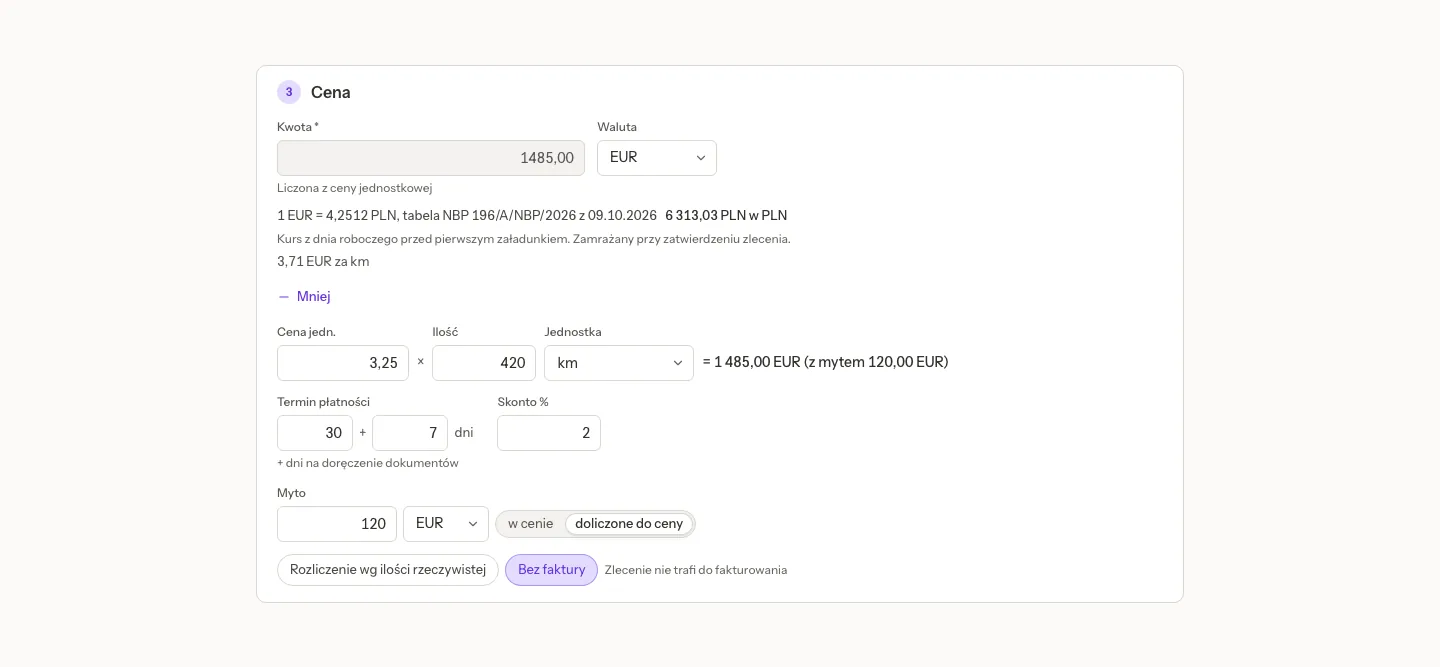
- Amount and Currency: the freight. Open the details to price it as Unit price × Quantity × Unit (per trip, km, tonne, pallet, loading metre or hour), and the amount is worked out for you.
- The NBP rate: a foreign-currency order shows its value in PLN at the NBP rate of the working day before the first loading. The rate is frozen when the order is confirmed, and taken again if the loading day moves, unless the order is already invoiced (or on a draft invoice, which says so).
- Payment term: days, plus days for delivering the documents (for example 30 + 7), and Skonto %.
- Toll: in the price, or added to the price, in which case it is its own line on the invoice.
- Bill by actual quantity, and No invoice: such an order never goes to invoicing and uses no credit limit; after delivery you mark it as settled.
- For a carrier: the carrier's term, skonto, toll and the Expected costs it will add (waiting time, ferry, parking).
- For your own fleet: an own cost you type, or an estimate from the fleet's cost per kilometre times the order's kilometres. The margin is the same on the order card, the list, the totals and the Settlement tab.
The orders list
Orders opens on the tabs In progress, Awaiting documents, To invoice, All, Drafts and Cancelled, with a search across numbers, references, clients, carriers, plates and cities.
- Filters: status, client, carrier, vehicle, driver, owner, mine, execution (own fleet or carrier), documents, issues, tags, branch, ADR and payment (paid, partly paid, unpaid, overdue, no issued invoice: the same as the row's payment dot).
- Which date: the date filter reads the loading date (the default), the unloading date, the created date or the invoice date.
- Table display: row height, Columns… (show, hide and drag columns, including invoice, payment and carrier payment columns), Column groups (Order, Client, Execution, Settlement, Carrier), Filter in columns for a filter row under the headers, and Back to the default layout. Your layout is kept for you on the server, follows you to another browser, and is never shown to a colleague.
- Only the selected narrows the list to the rows you ticked, and Issue invoice invoices them.
- The ⋯ menu has Download Excel and Print the list: exactly the list on screen, with its filters, sort and visible columns, and a totals row. A long list is prepared in the background and downloads by itself; past the limit the page asks you to narrow it.
The order card
The card's header shows the number, the status, its open issues and the next step, the one button that moves the order on: Confirm order, Plan, Send link to carrier, Mark loading, Remind about documents, Add documents or Issue invoice. The statuses run Draft, Confirmed, Planned, In progress, Delivered, Documents, Invoiced, Settled, or Cancelled.
The tabs:
- Details: the order form. The client, the freight and the reference of a confirmed order are changed with Correction, which asks for a reason. An invoiced order also needs a correcting invoice.
- Route and progress: the stops with their arrival and departure times, the map, and the links for the carrier and the client (below). With telematics, stops are ticked off by GPS.
- Documents: which papers are required, which arrived and which are missing. Each document can be marked whose it is (ours, the carrier's, the client's), important (a star), hidden (Show hidden), and attached to the invoice. Papers the carrier uploads through its link count as the carrier's.
- Settlement: the order's invoices, its carrier invoices (a collective one shows this order's part and the whole invoice) and the real margin.
- Activity: Notes and reminders, the history, the order's issues and its cargo claims.
Notes and reminders
Add a note and Remind me… in the ⋯ menu open the Activity tab. A reminder is for tomorrow by default, for you or a colleague who can edit, and shows first in that person's My work from its day. It is ticked off, moved or handed over in place. Everyone sees it, and only the person it is for, its author or an admin may change it.
The history reads in plain words, with plates, drivers, people and companies instead of ids, for example "Tractor: PO 4TJ21 → PO 7MN35", and numbers with their units.
Sharing with the carrier and the client
- Send link to carrier creates the Link for the carrier: the carrier sees the order, confirms it with the plate and the driver, and uploads its documents (CMR, proof of delivery, invoice) from a phone. The link works until a set date.
- The Tracking link for the client shows the status, the stops with plan and progress, the expected arrival and an approximate position, without prices, the carrier or the driver's data.
- Quanty shows a new link once: copy it and send it by e-mail or a messenger. (With the automatic action E-mails to clients on, clients also get a tracking link by e-mail when the order is loaded or delivered.)
- Copy link in the ⋯ menu copies the order's address in Quanty, for a colleague.
Printouts
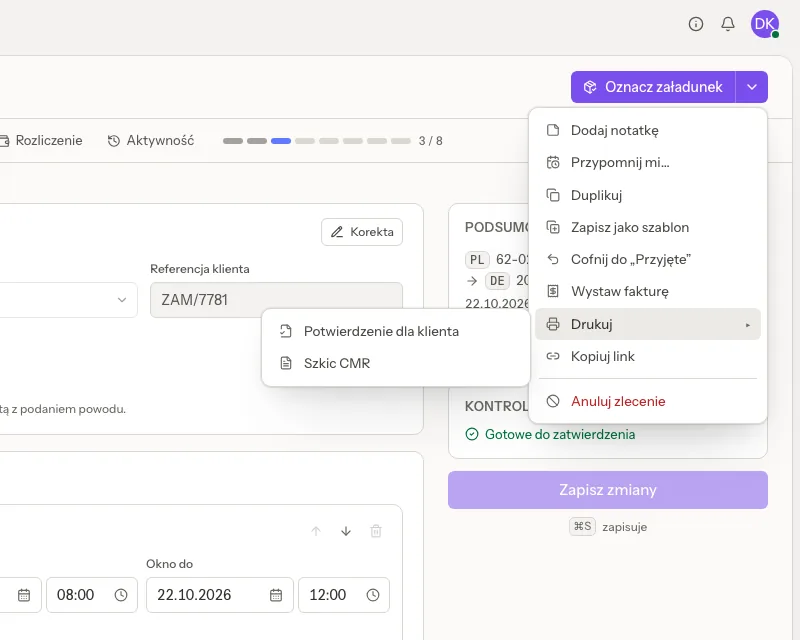
⋯, Print lists every paper the order offers:
- Order for the carrier (on a carrier order): Print, Download PDF in Polish, English or German, and Save in the order's documents, which files the sheet in Files and on the order once, however many times it is clicked. The sheet carries the carrier's payment term (from the order, else from the carrier's card, else your default) and the remarks you keep for carrier orders on the client's and carrier's cards.
- Confirmation for the client.
- CMR draft: pre-filled with the sender, the consignee, the plates and every ADR line (UN number, class, packing group).
Each print is logged in the order's history, for example "Printed: CMR draft (PL)", and viewers can print too. A cancelled order shows no print menu.
Planner, Tracking and Documents
- Planner: "Orders, workshop and absences by tractor", by day, week or two weeks. Not assigned lists confirmed own-fleet orders without a tractor: drag one onto a tractor to assign it. If the tractor or its set is busy, the planner asks before it assigns. Free now highlights tractors with no order and no service right now.
- Tracking: "Orders in progress: where they are and whether they will be on time", with the expected arrival (ETA), a filter for late orders, whether the carrier confirmed, and the order on the map. See also the fleet map.
- Documents: "Orders still waiting for their papers, the most urgent first", with a reminder to the carrier or the driver from the list.
Related pages
- TMS pallets: the pallet exchange that follows loadings and unloadings.
- TMS clients and carriers: credit limits, invoicing terms and remarks for printouts.
- TMS invoices, costs and payments: from a delivered order to the invoice.
- TMS in chat: finding, drafting and changing orders by asking.