

TMS operations
Once an order is confirmed, the work moves to Operations on the TMS rail: Planner, Tracking and Documents (this page), Pallets (see TMS pallets) and Carriers (see TMS clients and carriers). From the order card you also send the order to its driver or its carrier and see its kilometres, both described below.
Planner
Planner: "Orders, workshop and absences by tractor", by day, week or two weeks.
- Not assigned lists confirmed own-fleet orders without a tractor: drag one onto a tractor to assign it. If the tractor or its set is busy, the planner asks before it assigns.
- Free now highlights tractors with no order and no service right now.
Tracking
Tracking switches between Orders and Vehicles.
Orders
"Orders in progress: where they are and whether they will be on time", with the expected arrival (ETA), a filter for late orders, whether the carrier confirmed, and the order on the map. See also the fleet map.
The ETA says where it comes from. "ETA from the truck's own computer" is used when your telematics sends the truck's own ETA (GBOX does) and that report is less than 15 minutes old; otherwise it is "ETA estimated by Quanty from the last position".
Vehicles
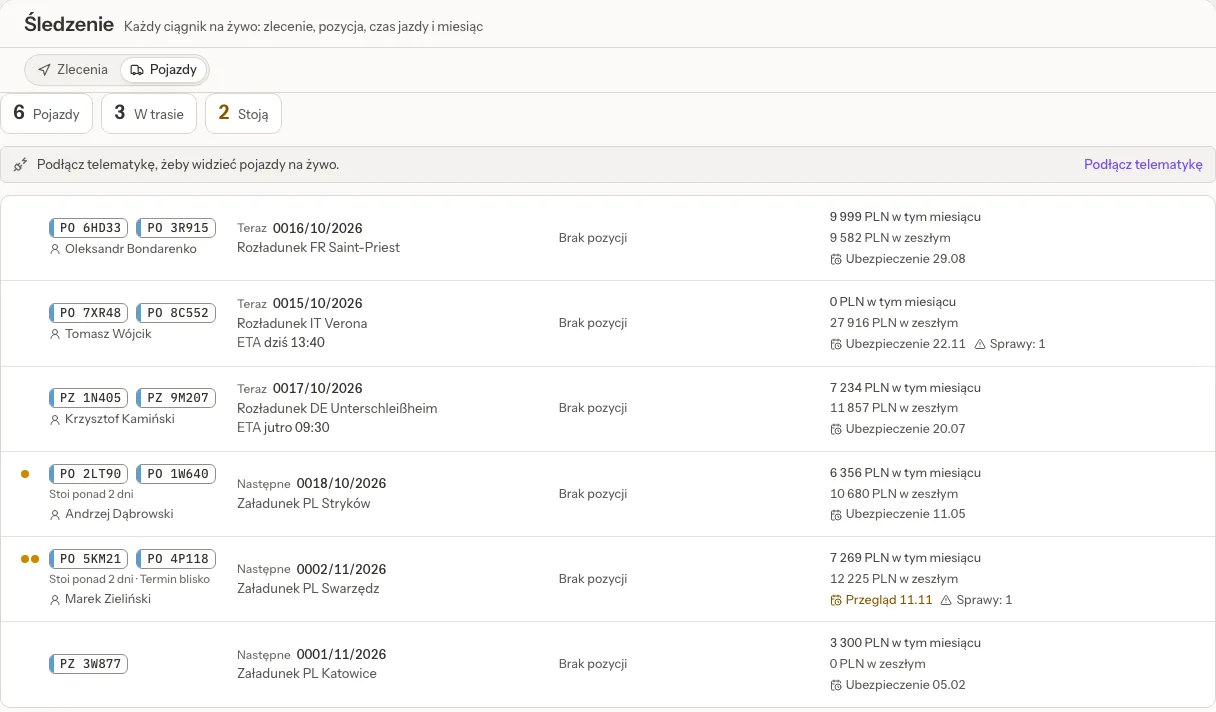
Vehicles is the board of your own fleet: "Every tractor live: its order, position, driving time and month". It has one row per tractor and solo truck in use, with counts of Vehicles, On the road and Idle at the top. Each row shows:
- the plate, with the trailer and the drivers of its current set;
- the current order (Now) or the next one (Next), its next stop and the ETA, or No order and how long the tractor has been idle ("Idle for 3 days");
- the last position and how old it is ("10 min ago"), or No position; the driving time left ("4 h of driving left") and how old that reading is, where your telematics sends it; and the fuel level, in litres, or as a percentage turned into litres with the tank size on the vehicle card;
- the freight and the km of this month, with last month's under them;
- what to watch: the nearest deadline (insurance, inspection, tachograph), the driver's next absence and the open issues.
Coloured dots mark Late, Idle over 2 days, Deadline soon and Deadline passed. An idle tractor has one button, Plan, which opens the planner on that tractor.
Without a telematics connection the board says "Connect telematics to see the vehicles live." and still lists the fleet. See Telematics (GPS).
Documents
Documents switches between Documents to collect and Scans to assign.
- Documents to collect: "Orders still waiting for their papers, the most urgent first", with a reminder to the carrier or the driver from the list.
- Scans to assign: "Scans that do not belong to an order yet: uploads and photos drivers sent on WhatsApp."
Scans to assign
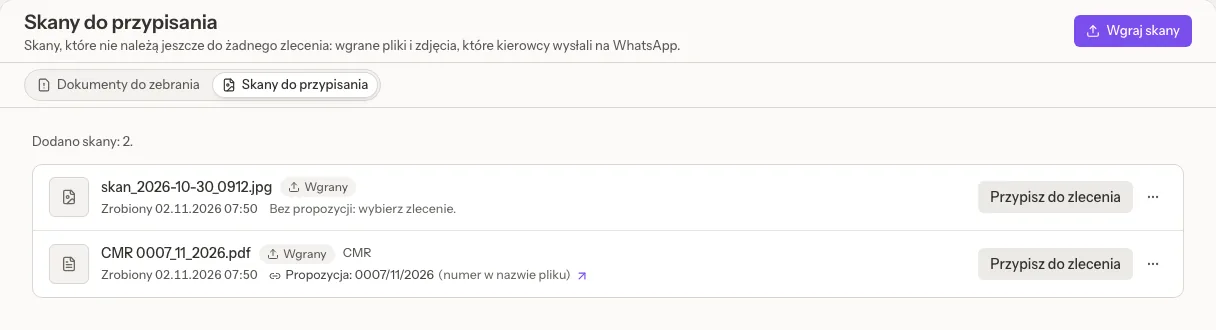
- Upload scans takes PDFs and photos, up to 20 files at once and 100 MB per pick. The same file twice is the same scan. Uploaded scans are kept in Files.
- A photo or PDF a driver sent to your WhatsApp number that is not about pallets (a CMR, a delivery note) joins the queue by itself.
- Each scan says where it came from (Uploaded, From WhatsApp), when it was taken and by which driver, and which order it probably belongs to, with the reason: the driver named the order, the driver's or the truck's order at that time, the number or the kind in the file name. With AI on, AI reads the scan too ("AI proposes: …", from the number, or the plate and date, on the scan), at most 100 scans a day. Otherwise: "No proposal: pick the order."
- Assign to an order picks the order, the document (CMR, Proof of delivery, Thermograph printout, Pallet receipt, Delivery note or Other document) and, for a set of several pages, the page ("1 of 3"). The scan then becomes a document of that order.
- The ⋯ menu has Open the file and Skip.
You only see and assign scans whose files you may open in Files.
Send the order to the driver
On an own-fleet order with a driver, Route and progress has the driver's thread and Send the order to the driver.
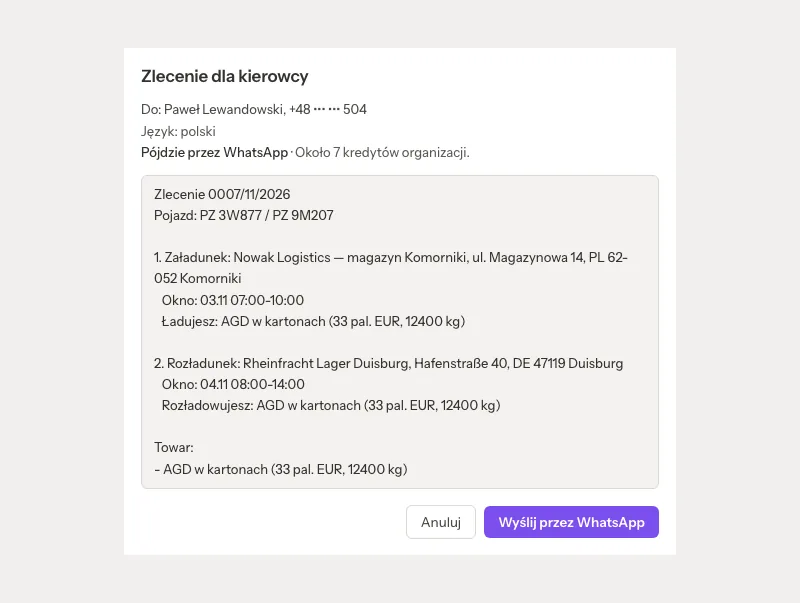
- The preview, Order for the driver, shows the text in the driver's language (Polish, English or German): the stops in order with their windows, references, pre-advice, ramps, contacts and what is loaded or unloaded there, the goods with ADR and the temperature to keep, the trailer and what the vehicle must carry, with your own trailer types and requirements under the names you gave them in Dictionaries. Never the freight, prices or the internal note.
- WhatsApp goes from your company's WhatsApp number, and only within 24 hours after the driver last wrote to that number: that is when WhatsApp allows a free message. Otherwise the order goes by SMS, where your organization may send SMS (from the Gold plan up). An SMS holds at most three parts, so a long order is cut, and the driver reads it without Polish letters. A driver whose card says he prefers SMS gets SMS first.
- The preview says how it goes and about how many credits it costs. Send by WhatsApp or Send by SMS sends it.
- The driver's number must carry its country code, for example +48 600 100 200; a number without one is refused, never guessed.
- The thread shows each message with its state: Sending, Sent, Delivered, Read, Not sent or Not known whether it arrived, and what the driver wrote back. Write to the driver sends a short message, for example "Ramp 4, not 5". Send again sends the order once more. Each send is written in the order's history.
A draft or a cancelled order is not sent. Quanty never writes to drivers about orders or drivers that come from Marcos TMS while that connection runs, nor about sample data. When Quanty works next to Marcos TMS for your whole organization, it writes to no driver at all, also about orders made in Quanty, unless the connection card lists "orders to drivers by SMS or WhatsApp" under "Quanty still sends": "Quanty works next to another system for this organization, so until it is switched off Quanty writes to no driver, also about orders made in Quanty. Send the order from that system." E-mailing the order to the carrier is refused too, and so are reminders about documents unless "reminders about missing CMR and POD" is listed (see TMS next to your existing system).
Send the order to the carrier
When you assign a carrier, the order checks its card: "The carrier's OCP insurance is valid until …, but the unloading is on …", no OCP valid-until date, or no licence number. "Only a warning: the order can still be assigned." If the carrier's contract has a rate for the lane, it shows with Use, which enters it as the carrier cost (see TMS orders and quotes).
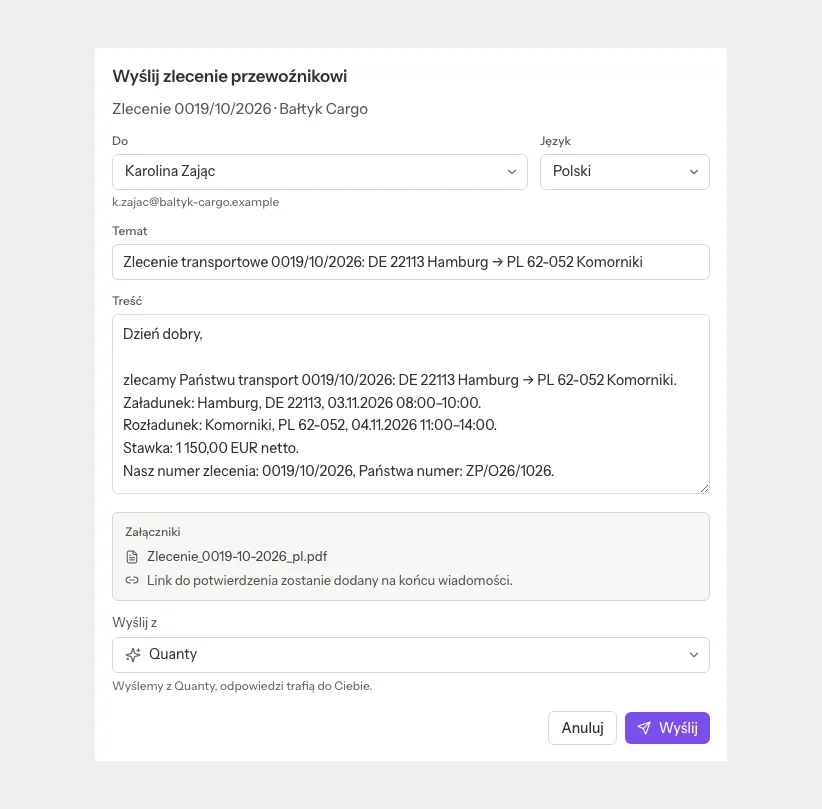
Send the order to the carrier (on the order card, while the order is Confirmed, Planned, In progress, Delivered or at Documents) e-mails the carrier:
- To: one of the carrier's contact persons with an e-mail address. Without one: "The carrier has no contact person with an e-mail address. Add one on the carrier's card."
- Language, Subject and Message from a template in that language, which you can edit. With AI on, Write with AI writes the message; read it before you send it.
- Attachments: the order for the carrier as a PDF in the e-mail's language. "The confirmation link is added at the end of the message." See the carrier's link.
- Send from: your own mailbox, a shared mailbox, or Quanty ("Sent from Quanty; replies come to you.").
After sending, the carrier line on the order reads "Sent … · waiting for confirmation", then "Confirmed …" when the carrier confirms on its link, or "Declined: …" with its reason. A decline also opens the issue The carrier declined the order: change the carrier or send the order again. An order already sent needs Send again, so two people never send it twice by accident.
Kilometres
Route and progress has the order's Kilometres table: Plan, Client and Actual, each split into empty and loaded, with totals and, after delivery, the difference against the plan.
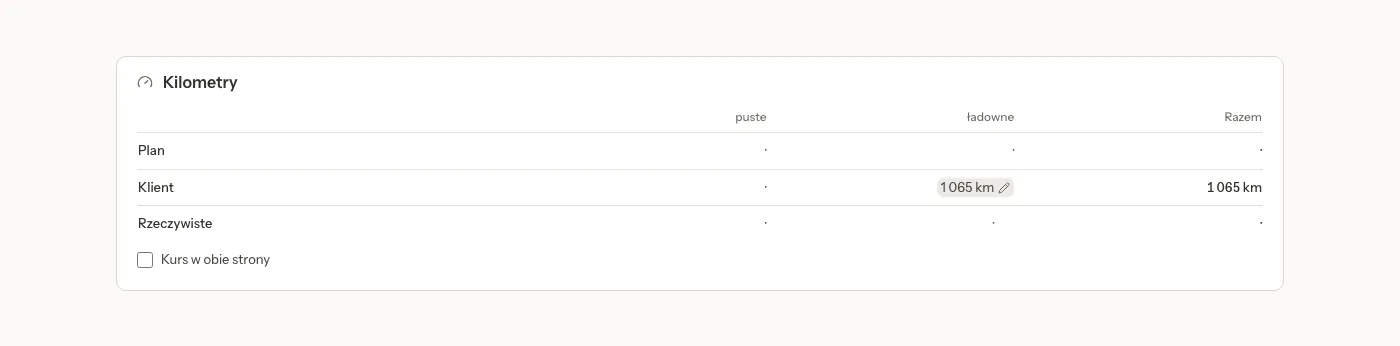
- The empty run of an own-fleet order is proposed from the tractor's previous order: from its last unloading to this order's first loading.
- The actual km come from the GPS trail of the order, once it is delivered.
- Change the client's km and Type the actual km let you type them. A typed number is never overwritten by Quanty.
- Round trip marks an order that comes back.
- The map shows the Planned route in blue and the route Driven (GPS) in green.
Settings that shape it
TMS settings, Connections, Drivers and routes (only organization admins change it):
- Keep drivers' working times: "The remaining driving and rest times your telematics sends are kept on the vehicle (personal data of the driver). Off: only the daily summary is kept." Off by default.
- Avoid ferries and Countries to avoid (two-letter codes separated by commas, for example CH, AT) for Calculate route on the order.
Who can do this
Viewers see these pages and change nothing. If an admin limited a member to some TMS modules, planning, tracking, documents and sending orders belong to Dispatch (see TMS modules).
Related pages
- TMS orders and quotes: the order form, the price and the order card.
- TMS links for clients, carriers and drivers: what the carrier, the client and the driver see.
- Telematics (GPS) and Fleet map and Map view.
- WhatsApp: the company number drivers write to.