

TMS carrier costs and payments
The Billing section of the TMS rail has three pages: Invoices, Carrier costs and Bank and payments. This page covers what carriers and suppliers invoice you and how you pay it: Carrier costs, and the Bank, Transfers and Cash desk tabs of Bank and payments. Your own invoices, receivables, dunning and factoring are in TMS invoices and receivables.
Carrier costs
Carrier costs holds carrier invoices and other costs, on the tabs To check, To pay, Paid and All.
- From KSeF: with the automatic action Costs from KSeF on, purchase invoices from KSeF become carrier costs by themselves and Quanty matches them to orders. Fetch from KSeF fetches a chosen period or one company now. Suppliers you list by NIP (fuel cards, leasing, your own companies) never become costs.
- From the carrier's link: a carrier sends its invoice for the order (the file, its number, the net and gross amounts and the currency) and later a correction on its order page. See TMS links for clients, carriers and drivers.
- Add cost enters one by hand, optionally with its order, so Quanty compares it with the agreed rate.
- A difference to the agreed cost within the tolerance and the extras on your list pass without questions; anything else waits under To check. Approving a cost with a difference asks you to tick it and write why.
The cost card
The cost card shows the supplier, the amounts with PLN at the NBP rate, the cost type, the vehicle and cost centre (MPK), the payment term counted from the documents, its files, its KSeF invoice, its corrections and Who did what (approved, transfer prepared, payment accepted, paid, handed to accounting).
- One invoice for several orders: a collective carrier invoice is matched line by line. Assign the orders, or confirm what AI proposes, and each order's Settlement tab shows its own part.
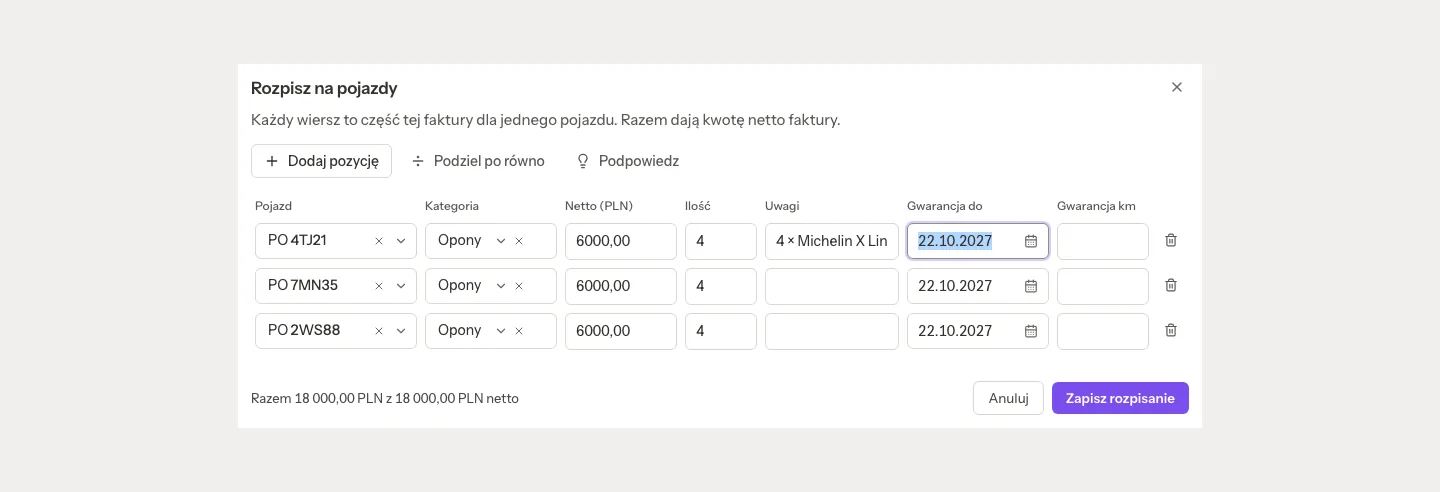
- Split to vehicles: for a fleet invoice, such as twelve tyres for three trucks. Split evenly spreads the net to the cent, Suggest reads plates and words from the KSeF lines, and Ask the AI helps when the AI switch is on. A sum that does not add up is refused with the numbers. Once the invoice is approved, each line is a cost of its vehicle, and a line can carry a warranty (until a date or for a number of km). Remove the split in the card's menu puts the invoice back as it was. A carrier invoice of an order is never split to vehicles.
- Receive into stock books the parts on the invoice into the parts store, and Pay from the cash desk pays it in cash. See TMS fleet and workshop.
Messages with the carrier
When a carrier sends its invoice through its link, the cost card has Messages with the carrier: the conversation about that invoice, with the number of new messages. A team member answers there, and the carrier sees the answer on its order page. No e-mail is sent: when the carrier has no working link to the order, the card says that it sees the answer once it gets a new link.
Paying a cost
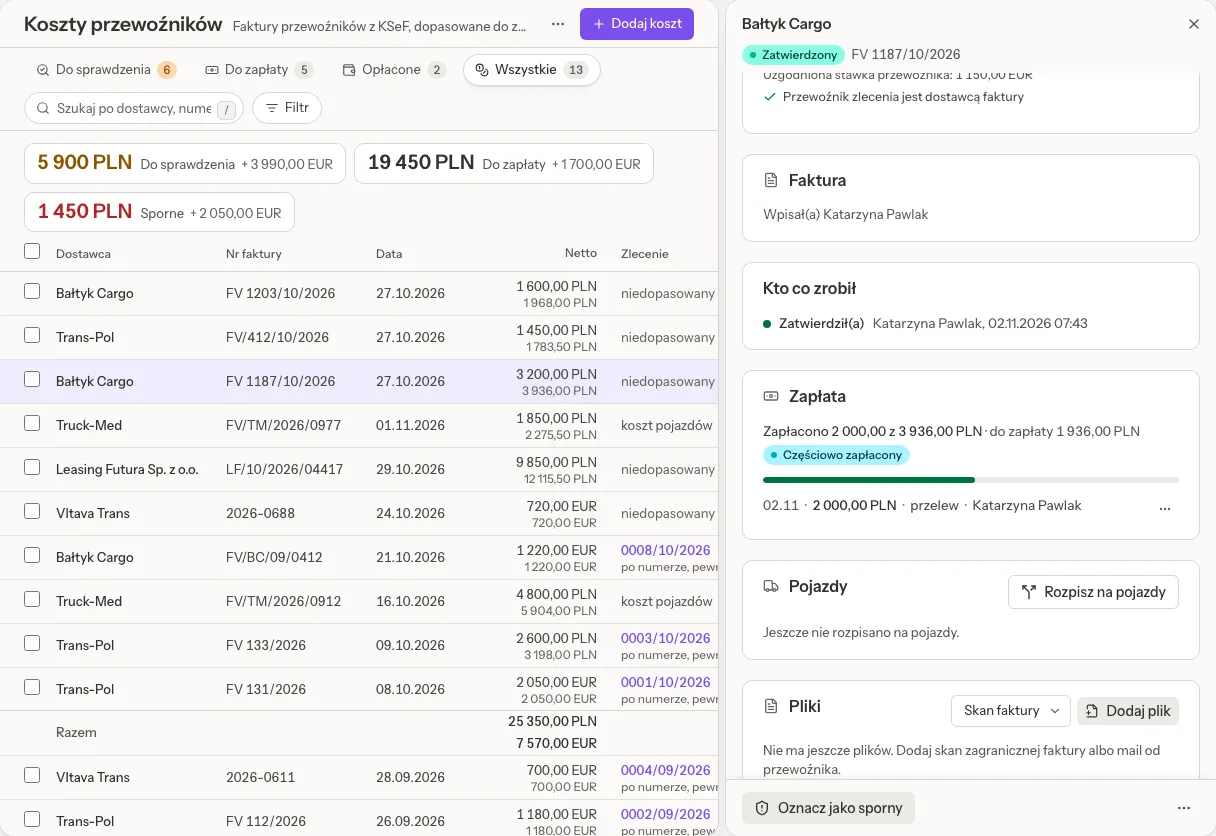
The cost card's Payment section shows "Paid … of …" and what is still to pay, with the payments of the invoice. Its ⋯ holds:
- Record a payment: what was paid outside Quanty, as a Transfer, Cash, Card or Set-off, prefilled with what is open. A payment is never more than what is open, and it is recorded on the day it was made, not ahead. A cost paid in part shows as Partly paid; the last payment makes it paid. An admin can delete a payment recorded this way, and the amount is to pay again. A payment from the cash desk, a bank statement or a transfer batch is taken back where it was made.
- Promised by…: the day by which the carrier promised a document or a correction, and what it promised.
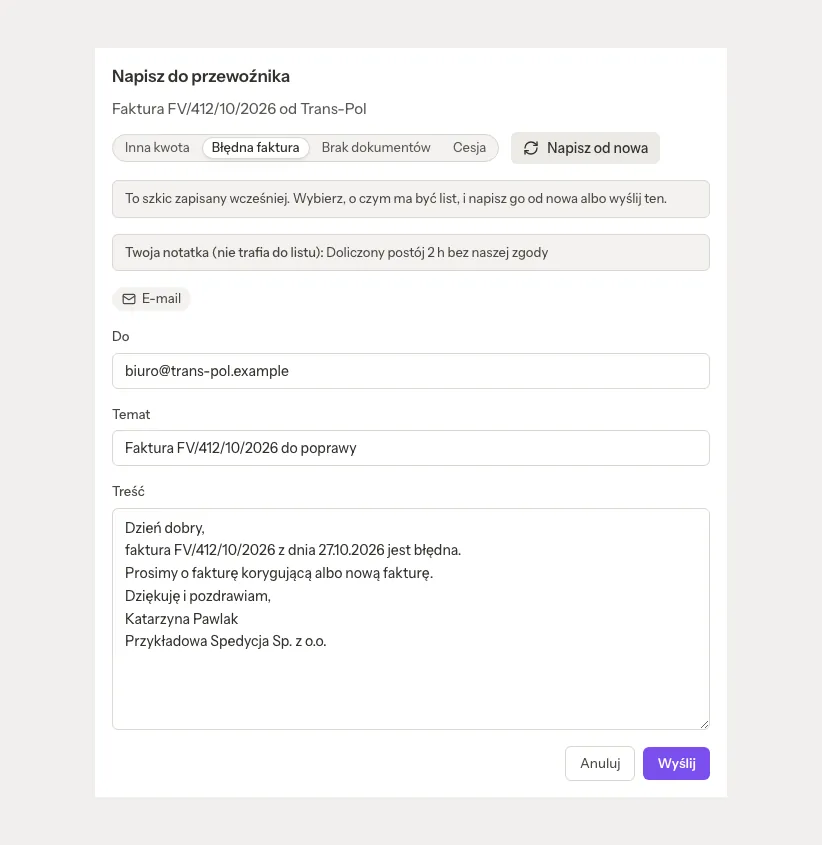
- Write to the carrier: a letter about a Different amount, a Wrong invoice, Missing documents or an Assignment (cession), drafted in the carrier's language, by AI when the AI switch is on, else from a template. It goes by e-mail to the carrier's contact for invoices; you edit it and press Send, and nothing goes out by itself. The card shows when the last letter went and to whom.
Bank and payments
Bank and payments has the tabs Receivables, Bank, Factoring, Transfers and Cash desk. Receivables and Factoring are in TMS invoices and receivables.
- Bank: Import a bank statement (MT940, camt.053 or CSV from your bank, up to 5 MB; transfers imported before are skipped). Quanty suggests which invoices and costs each transfer pays. Transfers are To match, Matched or Skipped.
- Transfers: payment batches for approved costs, paid to each carrier's default account, with the VAT white-list check. A batch can make One transfer per supplier or one per invoice, dated on One date or on Each invoice's due date (a due date that has passed becomes today). Invoices with a split payment go as transfers of their own. Above an amount you set, a second person, other than the one who prepared the batch, accepts the payment (Accept the payment).
Set-off
Set-off in the ⋯ of Bank and payments settles a contractor's invoices to us against our invoices to it, without a transfer. Pick the contractor, tick at least one invoice on each side (Our invoices and Their invoices, in one currency) and use Even out until both sides come to the same sum. After Save set-off, both sides are paid by the amounts set off.

- Print statement makes the set-off statement in Polish, English or German, also as a PDF.
- Confirmed on… records the day the contractor sent back the signed statement.
- An admin can delete a set-off: both sides go back, and the invoices and the costs are to pay again by the amounts set off.
Cash desk
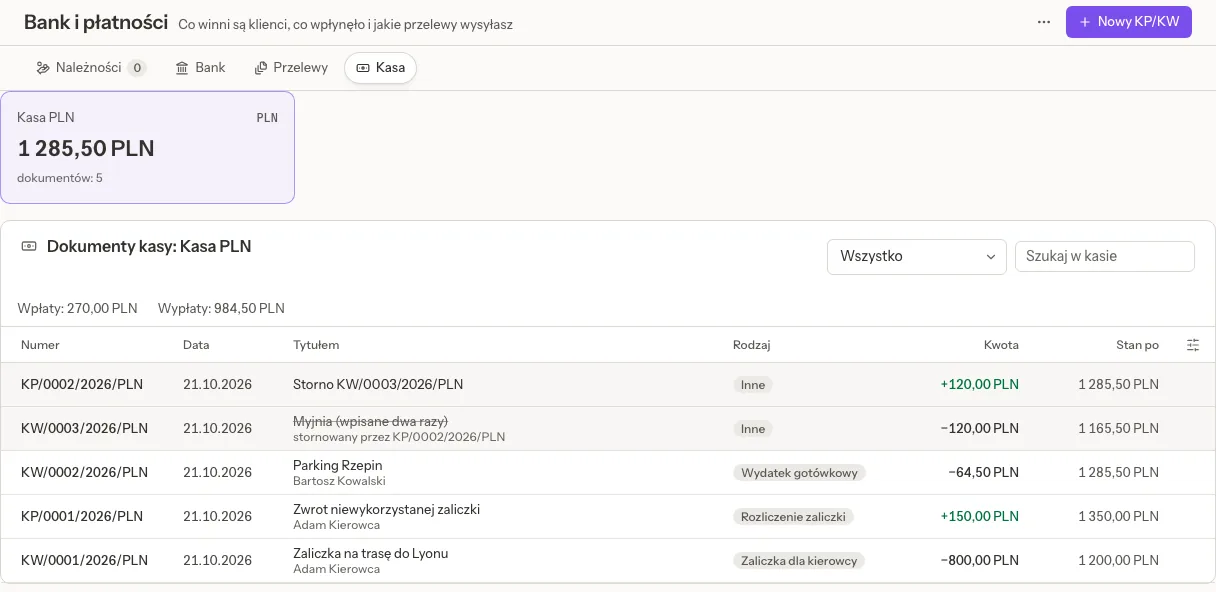
Cash desk keeps cash desks, one currency each, with KP (money in) and KW (money out) slips: advances for drivers and their settlement, cash expenses, invoices paid in cash, refunds and bank deposits or withdrawals.
- New KP/KW writes a slip. A slip is never edited or deleted: a mistake is reversed with a storno and a reason, and both stay on the list.
- The balance never goes below zero, also for a backdated slip or two payouts at the same moment.
- Pay from the cash desk on a cost pays its invoice in cash; a storno makes it unpaid again.
- A KP can be saved as an Advance return of a driver's open advance: the advance then shows what came back at the cash desk, and the month's settlement asks only for the rest. A storno of that KP takes the return back.
- Each slip prints with the amount in words. A receipt photo can be read by the AI, when the AI switch is on.
- The driver's card shows his slips under Cash desk.
Accounting export of costs
Export for accounting in the menu of the Carrier costs page makes the register of carriers' cost invoices of a period for your accountant, as Excel or CSV, with the same File, History and Settings tabs as the sales register (see TMS invoices and receivables). Mark as exported stamps every cost in the file: the cost card says "Handed to accounting", the cost cannot be edited or re-rated, and the next export of the period leaves it out. Only an admin can reopen it, with a reason, and the next export takes it again.
Related pages
- TMS invoices and receivables: your invoices, dunning, factoring and the sales register.
- TMS clients and carriers: bank accounts, the NBP table and contract rates.
- TMS fleet and workshop: fleet costs, the parts store and warranties.
- TMS people, trips and working time: drivers' advances and the monthly settlement.
- KSeF e-invoices: where purchase invoices come from.